If you’ve ever wanted to skip the typing and just send a voice message on iPhone, you’re not alone. Whether you’re catching up with a friend, sending a quick update to a coworker, or you just have way too much to say for a text bubble — voice messages are one of the most underused features on iOS. And in 2026, with iOS 26, the whole experience has gotten even smoother. This guide covers everything from the built-in iMessage method to third-party apps like WhatsApp and Telegram, so you’ll know exactly how to do it no matter who you’re messaging.
What Is a Voice Message on iPhone?
A voice message on iPhone is an audio recording you send directly inside a conversation — no phone call needed. Instead of typing out a long paragraph, you record yourself speaking and the other person can listen to it whenever they want. On iPhone, this works natively through the Messages app using iMessage, but it’s also supported by apps like WhatsApp, Telegram, and Signal. Each method has its own quirks, so it helps to know which one fits your situation best.
How to Send a Voice Message on iPhone via iMessage (iOS 26)
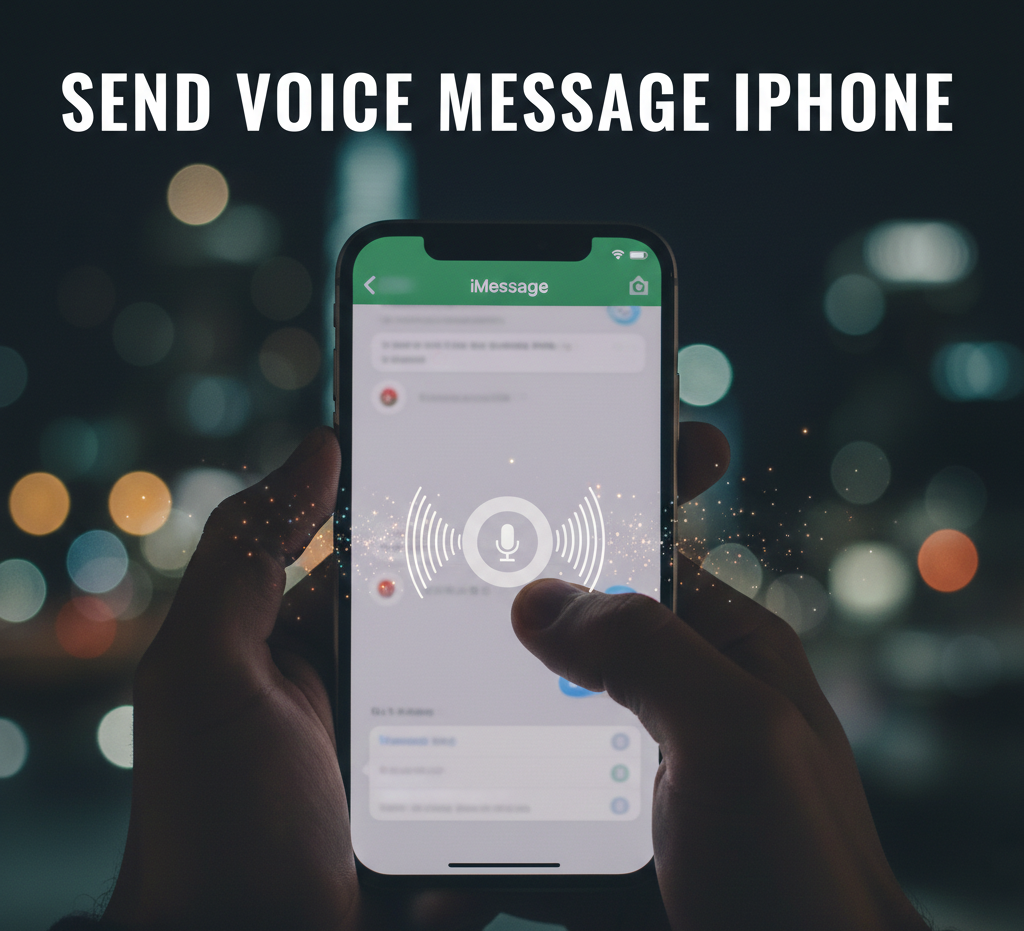
The easiest and most built-in way to send a voice message on your iPhone is directly through the Messages app. Apple has refined this feature through several iOS versions, and as of iOS 26, it works more reliably than ever. Here are two ways to do it.
Method 1: Using the + Button (iOS 17 and Later)
This is the standard method for anyone running iOS 17, iOS 18, or the current iOS 26. Apple moved the voice message option into the + menu starting with iOS 17, so if you’re wondering why you can’t find the old microphone icon — that’s why.
- Open the Messages app on your iPhone.
- Tap on an existing conversation or start a new one.
- Tap the + (plus) button on the left side of the text field.
- Select Audio from the list (it looks like a waveform icon).
- Your iPhone will start recording immediately — speak clearly.
- When you’re done, tap the Stop button (red square).
- Review the message by tapping the Play button, then hit the blue arrow to send. If you want to scrap it, tap the X.
One handy thing: iOS remembers your last preference. If you sent an audio message recently, the Audio icon will show up right next to the text field without needing to tap + again.
Method 2: Tap and Hold the Waveform Icon
Once you’ve sent at least one audio message, iOS places a shortcut icon directly in the text bar. You can press and hold it to start recording instantly, then release your finger to send. This is the fastest method once you’re familiar with it — no menus, no tapping around.
How to Send a Voice Memo as a Message on iPhone
Sometimes you want a bit more control over your audio before sending it — maybe you want to record something longer, or you need to trim a clip. That’s where the Voice Memos app comes in. It’s built into every iPhone and gives you better audio quality with noise-reduction filters.
- Open the Voice Memos app.
- Tap the red Record button to start recording your message.
- Tap it again to stop when you’re done.
- Tap the three-dot menu (…) on the recording.
- Tap Share, then select Messages.
- Choose your contact and tap Send.
Keep in mind: Voice Memos sent this way arrive as a file attachment, not as a native iMessage audio bubble. That means the recipient won’t get the automatic transcript feature that comes with native iMessage audio messages — but the audio quality is generally better.
How to Send Voice Messages to Android Users
Here’s something that trips a lot of people up: iMessage audio messages are Apple-only. You can’t send a native voice bubble from iMessage to an Android user the same way you would to another iPhone. If you try, it gets sent as an MMS attachment, which may or may not play correctly depending on the Android device.
The cleanest solution is to use a cross-platform app like WhatsApp or Telegram, which work identically on both iPhone and Android.
- Open WhatsApp and go to the conversation.
- Press and hold the microphone icon on the right side of the text bar.
- Speak your message while holding it down.
- Release your finger to send, or swipe left to cancel.
If you want to lock the recording so you don’t have to hold the mic the whole time, slide your finger up while recording — WhatsApp will keep recording hands-free until you tap Stop.
Telegram
- Open Telegram and open a chat.
- Press and hold the microphone icon next to the text field.
- Speak your message and release to send.
- Slide left to cancel if needed.
Telegram also has a hands-free lock mode — slide up while recording to activate it. This is useful for longer voice messages where holding down the mic gets tiring.
How to Listen to and Reply to Voice Messages on iPhone
Receiving a voice message is just as easy as sending one. Tap the play button on any audio bubble in your Messages conversation to listen. But there’s a smarter way to do it that most people don’t know about.
Apple has a feature called Raise to Listen. When you receive a voice message, just raise your iPhone to your ear like you’re taking a phone call — the message starts playing automatically through your earpiece speaker (which is quieter and more private). When the message ends, you can lower your phone and raise it back to your ear to start recording your reply. It feels very natural once you get used to it.
If Raise to Listen isn’t working, make sure it’s enabled: go to Settings → Apps → Messages and toggle on Raise to Listen.
One more thing worth knowing: as of iOS 17, iMessage automatically generates a text transcript below every voice message. So if you’re in a meeting or somewhere you can’t listen, you can still read what was said.
How to Save Voice Messages on iPhone
By default, iMessage voice messages self-destruct. Specifically, they disappear two minutes after you’ve listened to them. If you want to keep a voice message, you have to act fast.
Right after listening, tap Keep under the audio bubble. That saves it in your conversation permanently. You can also go to Settings → Apps → Messages → Expire and set it to Never, which stops all voice messages from auto-deleting.
If you want to save a voice message to your Voice Memos app for easy access later, press and hold the audio bubble and tap Save to Voice Memos. You’ll find it in the Voice Memos app under All Recordings, labeled with the sender’s name.
Tips to Get the Most Out of Voice Messaging on iPhone
A few practical things that make a real difference:
- Use a quiet environment. iPhone mics are sensitive but they still pick up background noise. Background chatter or wind makes your message harder to understand.
- Keep it under two minutes. Longer voice messages are harder to re-listen to because you can’t easily search them. Shorter is almost always better.
- iMessage only works Apple-to-Apple. If you need to voice message an Android user, use WhatsApp or Telegram — it’s just simpler.
- Unsend within two minutes. Made a mistake? Press and hold the audio bubble and tap Undo Send. This only works within two minutes of sending.
- Forward to multiple people. Press and hold the audio message, tap More, select the messages, and tap the Forward button to send to multiple contacts without re-recording.
Frequently Asked Questions
How do I send a voice message on iPhone with iOS 26?
On iOS 26, open the Messages app, go to a conversation, and tap the + (plus) button on the left of the text field. Select Audio, record your message, then tap the blue arrow to send. Alternatively, once you’ve sent one audio message, a shortcut icon appears in the text bar that you can press and hold to record instantly.
Why can’t I find the voice message button in iMessage?
Starting with iOS 17, Apple moved the voice message option out of the main text bar and into the + menu. Tap the + button next to the text field and look for the Audio option with the waveform icon. If you still don’t see it, scroll down or tap More to reveal all options.
Can I send a voice message from iPhone to Android?
Not directly through iMessage — native iMessage audio messages only work between Apple devices. For iPhone-to-Android voice messages, use a cross-platform app like WhatsApp or Telegram, which support voice messages on both iOS and Android without any compatibility issues.
Why do my voice messages disappear after listening?
iMessage automatically deletes voice messages two minutes after they’ve been played. This is the default setting. To prevent this, tap Keep right after listening to a message, or go to Settings → Apps → Messages → Expire and change it to Never.
How do I save a received voice message on iPhone?
To save a voice message, either tap Keep directly under the audio bubble right after listening, or press and hold the message and select Save to Voice Memos. If you choose the Voice Memos option, you’ll find the recording in the Voice Memos app under All Recordings.
Does iMessage voice message use data or SMS?
iMessage voice messages use your internet connection (Wi-Fi or cellular data), not your SMS or text plan. However, if iMessage is not available — for example, when messaging someone without an Apple device — the message may be sent as an MMS, which could count against your carrier plan.