Ever handed your iPhone to a friend and immediately regretted it? With iOS 18, Apple finally lets you lock apps on your iPhone using Face ID, Touch ID, or a passcode — no third-party apps needed. Whether you want to protect your banking app, private messages, or your photo library, this guide walks you through every step of locking, unlocking, and even hiding apps on your iPhone.
What Does Locking an App on iPhone Mean?
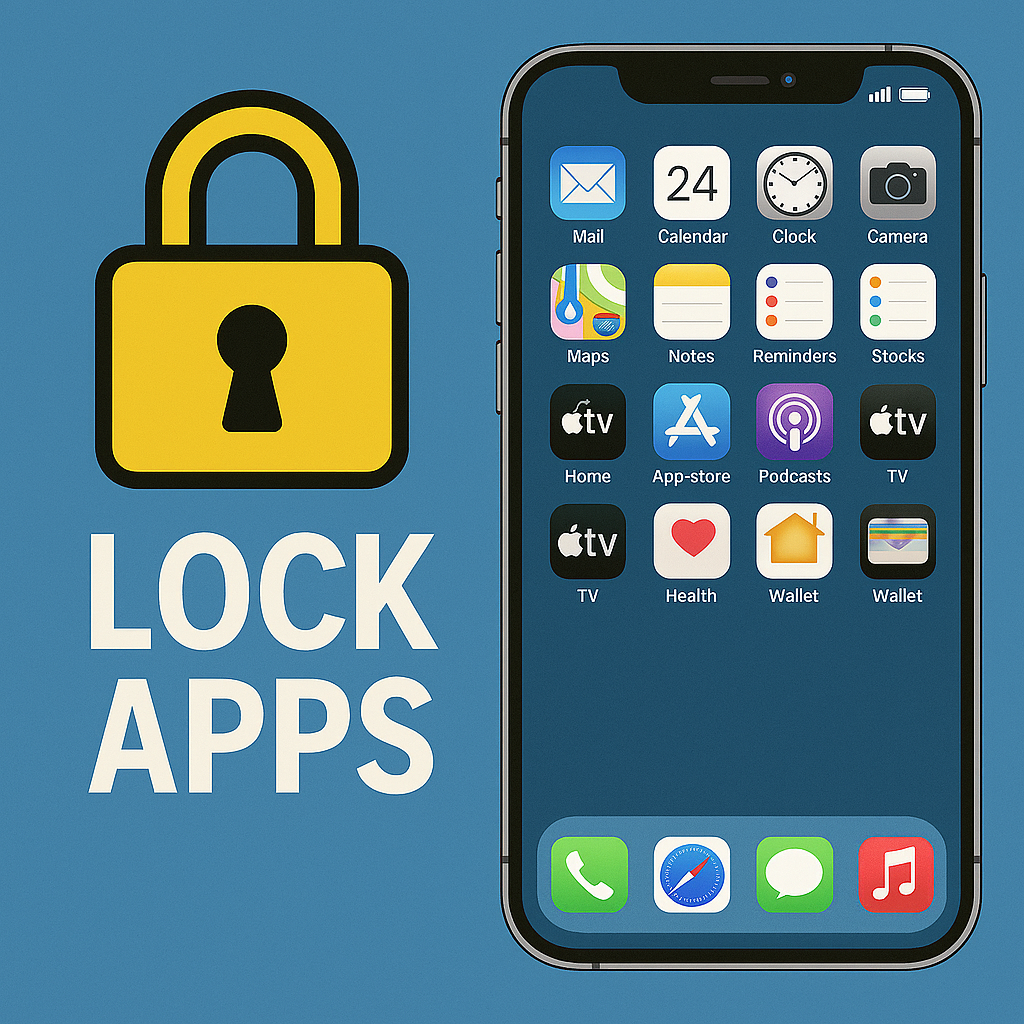
Locking an app means that even if your iPhone is unlocked, anyone who tries to open that specific app will be stopped by a Face ID, Touch ID, or passcode prompt. The app icon stays visible on your Home Screen, but the content stays private. Think of it like putting a padlock on a door that’s already inside your house.
Hiding an app, on the other hand, goes one step further — it removes the icon entirely from your Home Screen and places the app in a hidden folder inside the App Library. Both features were introduced with iOS 18 and are available on all iPhones that support it.
Requirements: What You Need Before You Start
Before you can lock or hide apps on your iPhone, make sure you have the following:
- iPhone running iOS 18 or later
- Face ID, Touch ID, or a device passcode set up
The feature is not limited to specific iPhone models — if your device supports iOS 18, you can use app locking. Note that some built-in Apple apps cannot be locked, including Maps, Clock, Calculator, Contacts, Find My, Shortcuts, and Settings. Almost every other app — including third-party apps and apps like Photos, Messages, and Safari — can be locked.
How to Lock Apps on iPhone (iOS 18)
Locking an app on iPhone takes less than 10 seconds. Here’s how to do it:
- Go to your Home Screen and find the app you want to lock.
- Touch and hold the app icon until the quick action menu appears.
- Tap “Require Face ID” (or “Require Touch ID” on older models).
- Tap “Require Face ID” again to confirm.
- Authenticate with Face ID (or Touch ID / passcode) to complete the setup.
That’s it. From now on, tapping that app will show a blurred screen and prompt you to authenticate before granting access. If Face ID fails twice, your iPhone will offer the option to enter your passcode instead — unless Stolen Device Protection is enabled, in which case only Face ID will work.
What Happens to Locked Apps?
When an app is locked, a few things change automatically:
- Notification previews from that app will be hidden
- The app’s content won’t appear in Spotlight search results
- Siri cannot be used to access the locked app
- The app icon stays on your Home Screen as normal
How to Open a Locked App Without Permanently Unlocking It
You don’t have to permanently unlock an app just to use it. Simply tap the app icon, authenticate with Face ID or your passcode, and use the app normally. Once you close or quit the app, it automatically re-locks. Next time you open it, you’ll need to authenticate again.
How to Unlock Apps on iPhone
If you want to remove the lock from an app entirely so it opens normally without authentication, follow these steps:
- Go to your Home Screen and find the locked app.
- Touch and hold the app icon until the quick menu opens.
- Tap “Don’t Require Face ID” (or Touch ID).
- Authenticate with Face ID or your passcode to confirm.
The lock is removed immediately and the app will open normally going forward.
How to Hide Apps on iPhone (iOS 18)
Hiding an app removes it from your Home Screen and places it in a protected hidden folder. This option is only available for third-party apps — you cannot hide built-in system apps like Safari or Photos.
- Touch and hold the app icon on your Home Screen.
- Tap “Require Face ID” from the menu.
- After confirming the lock, touch and hold the app icon again.
- Tap “Hide and Require Face ID”.
- Authenticate to confirm.
The app icon disappears from your Home Screen. It moves to the Hidden folder at the bottom of your App Library, which is protected by Face ID.
How to Find and Access a Hidden App
To access a hidden app without unhiding it:
- Swipe left past all your Home Screen pages to reach the App Library.
- Scroll down and tap the Hidden folder at the bottom.
- Authenticate with Face ID to reveal the apps inside.
- Tap the app you want to open.
Alternatively, you can go to Settings > Apps > Hidden Apps to see a list of all hidden apps.
How to Unhide Apps on iPhone
To bring a hidden app back to your Home Screen:
- Open the App Library by swiping left from your Home Screen.
- Tap the Hidden folder and authenticate with Face ID.
- Touch and hold the app icon inside the folder.
- Tap “Add to Home Screen” and then “Don’t Require Face ID” if you want to remove the lock as well.
How to Lock Apps Using Screen Time
Screen Time is an older method that still works on iOS 17 and below, and it remains useful for parental controls or setting time limits. Here’s how to use it:
- Open Settings and tap Screen Time.
- Tap App Limits, then tap Add Limit.
- Select the app or category you want to restrict.
- Set a daily time limit (even 1 minute works if you just want to block access).
- Enable Block at End of Limit.
- Go back to Screen Time and tap Lock Screen Time Settings to set a passcode.
With Screen Time, after the limit is reached, the app locks until midnight when the timer resets — or until someone with the Screen Time passcode unlocks it manually. This method is especially helpful for parents who want to manage how long their children use certain apps.
Lock vs. Hide vs. Screen Time: Which Method Should You Use?
Here’s a quick breakdown to help you decide:
- Lock (iOS 18): Best for keeping specific apps private from anyone who picks up your phone. The icon stays visible but requires Face ID to open. Works on almost all apps including system apps like Photos and Messages.
- Hide (iOS 18): Best when you don’t want the app to be visible at all. The icon disappears from the Home Screen. Only works for third-party apps.
- Screen Time: Best for parental controls or if you’re on iOS 17 or older. Lets you set time limits and block access after a set period each day.
Tips and Things to Know
- If Stolen Device Protection is enabled, the app can only be unlocked with Face ID — the passcode option is disabled. This adds an extra layer of security if your iPhone is stolen.
- Locking one app does not lock other apps that share access to the same data. For example, locking the Photos app won’t prevent other apps that already have photo access from viewing your photos.
- You cannot lock a folder on your iPhone — only individual apps.
- Locked apps still receive notifications, but the content of those notifications will be hidden from the Lock Screen and Notification Center.
Frequently Asked Questions
Can I lock any app on my iPhone?
Almost, but not quite. iOS 18 lets you lock the majority of apps including third-party apps and most Apple apps like Photos, Messages, and Safari. However, some built-in apps cannot be locked, including Maps, Clock, Calculator, Contacts, Find My, Shortcuts, and Settings.
What happens if Face ID fails when I try to open a locked app?
If Face ID fails, your iPhone will offer you the option to try again. After a second failed attempt, you can tap “Enter Passcode” to unlock the app with your device passcode. However, if Stolen Device Protection is enabled, the passcode option is not available — only Face ID will work.
Do locked apps still show notifications?
Yes, locked apps still receive notifications, but the content of those notifications is hidden. Instead of showing a preview of the message or alert, your Lock Screen and Notification Center will simply show that there is a new notification, without revealing what it says.
Can I lock apps on iPhone without iOS 18?
If you’re running iOS 17 or older, you cannot use the built-in lock or hide features. However, you can use Screen Time to restrict access to apps after a time limit. Some third-party apps also offer additional security features, though they are less reliable than the native iOS 18 method.
Is hiding an app the same as deleting it?
No. When you hide an app, it’s simply moved to a protected Hidden folder in your App Library. All your data, settings, and content inside the app remain intact. You can unhide the app at any time and everything will be exactly as you left it.
Does locking an app affect other apps that access the same data?
No. Locking an app only protects that specific app. If you lock the Photos app, for example, other apps that already have permission to access your photos will still be able to do so. You would need to lock or restrict those apps individually as well.