Few things are more frustrating than plugging in a USB device only to find that your USB port is not working or receiving the dreaded “USB device not recognized” error message. Whether you’re trying to transfer important files, charge your phone, or connect a keyboard, a malfunctioning USB connection can bring your work to a complete halt.This comprehensive guide walks you through every proven solution to fix USB connectivity issues on Windows computers. From simple restarts to advanced driver fixes, you’ll discover practical troubleshooting steps that actually work. Most USB problems can be resolved in under 10 minutes without any technical expertise, so let’s get your ports working again.
Understanding USB Port Issues
USB ports are essential interfaces that allow you to connect external devices to your computer. When these ports malfunction, the problem usually falls into one of two categories: the port itself has stopped working entirely, or Windows cannot recognize the device you’ve plugged in.
A non-working USB port means the port provides no power and doesn’t detect any device. You might notice that device lights don’t turn on when plugged in, or there’s absolutely no response from your computer. On the other hand, when you get a “USB device not recognized” error, the port is actually detecting something, but Windows can’t establish a proper connection with the device.
Understanding this distinction helps you apply the right fix faster. Both issues share common causes like outdated drivers, power management settings, and physical damage, but they sometimes require different troubleshooting approaches.
Common Causes of USB Problems
Outdated or Corrupted USB Drivers
Drivers serve as translators between your operating system and hardware devices. When USB drivers become outdated, corrupted, or incompatible with system updates, your computer loses the ability to communicate properly with USB devices. This is one of the most frequent causes of USB recognition failures.
Power Management Settings
Windows includes a feature called USB Selective Suspend that automatically powers down inactive USB ports to save energy. While this sounds beneficial, it can mistakenly disable ports you’re actually using, preventing devices from working correctly. Many USB issues trace back to overly aggressive power-saving configurations.
Physical Port Damage
USB ports endure constant plugging and unplugging, which gradually wears down the internal components. Bent connector pins, loose connections, or debris accumulation inside the port can prevent proper contact between your device and the computer. Sometimes the damage is visible, but other times it’s hidden inside the port housing.
BIOS Configuration Problems
Your computer’s BIOS controls fundamental hardware functions, including USB port operation. If USB support is accidentally disabled in BIOS settings, or if certain power-saving features like ErP mode are activated, your ports won’t function regardless of your Windows configuration.
Faulty USB Cable or Device
Not all USB connectivity issues stem from your computer. The cable connecting your device might be damaged internally, or the device itself could be malfunctioning. Some USB-C cables are charge-only and don’t support data transfer, which creates confusion when trying to move files.
Quick Diagnostic Tests
Before diving into complex solutions, run these simple tests to identify where the problem actually lies. These quick checks take only a few minutes but can save you hours of unnecessary troubleshooting.
Test Different USB Ports
Unplug your device and try connecting it to every available USB port on your computer. If the device works in one port but not another, you’ve isolated the problem to a specific port rather than a system-wide issue. This tells you that your drivers are probably fine, and the problem is physical damage to that particular port.
Try Different Devices
Plug several different USB devices into the problematic port. If none of them work, the port is definitely faulty. If some devices work while others don’t, the issue might be compatibility-related or specific to certain device types.
Switch Cables
If you’re using a cable-connected device, swap out the cable for a different one. Many connection problems come from damaged cables rather than faulty ports. This is especially common with frequently bent or twisted cables.
Check for Physical Damage
Use your phone’s flashlight to look inside the USB port. Check for bent pins, visible cracks, burn marks, or accumulated dust and debris. Bent pins are a common issue that prevents proper connection even when everything else is functioning correctly.
Restart Your Computer
This might sound too simple, but restarting refreshes system processes and can clear temporary glitches affecting USB functionality. Many users report their USB issues disappearing after a simple reboot, making this the fastest potential fix available.
How to Fix USB Port Not Working
Solution 1: Restart Your Computer
Always start with the simplest solution. Restarting your computer clears temporary system files, refreshes drivers, and resets USB controllers. This resolves many temporary glitches that cause USB ports to stop responding.
To restart properly, close all programs and click Start, then Power, and select Restart. After your computer boots back up, test your USB device immediately. If it works, the issue was a temporary system conflict that’s now resolved.
Solution 2: Update USB Drivers
Outdated drivers are responsible for countless USB problems. Windows should automatically update drivers, but sometimes it misses critical updates or installs incorrect versions. Manual driver updates ensure you’re running the latest, most compatible software.
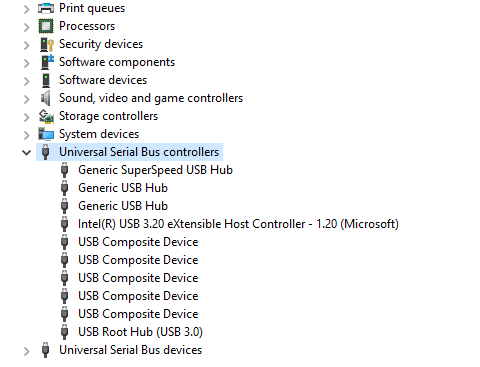
Update Drivers via Device Manager:
- Right-click the Start button and select Device Manager
- Expand “Universal Serial Bus controllers”
- Right-click on “USB Root Hub” and select “Update driver”
- Choose “Search automatically for updated driver software”
- If Windows finds an update, install it and restart your computer
- Repeat this process for all USB Root Hub entries
If Windows reports that the best drivers are already installed but you’re still having problems, try uninstalling and reinstalling the drivers instead.
Solution 3: Uninstall and Reinstall USB Controllers
When USB drivers become corrupted, updating them might not be enough. Completely removing and reinstalling USB controllers forces Windows to rebuild the driver configuration from scratch, which often resolves stubborn recognition issues.
Steps to Reinstall USB Controllers:
- Open Device Manager (right-click Start and select it from the menu)
- Expand “Universal Serial Bus controllers”
- Right-click each USB Host Controller and USB Root Hub entry
- Select “Uninstall device” and confirm the action
- Repeat for all USB-related entries in this section
- Restart your computer
- Windows automatically reinstalls all USB drivers during startup
After the restart, your USB ports should recognize devices properly. If not, proceed to the next solution.
Solution 4: Disable USB Selective Suspend
USB Selective Suspend is a power-saving feature that can interfere with device connectivity. Disabling it keeps your USB ports active at all times, preventing Windows from incorrectly powering them down.
Disable Selective Suspend:
- Press Windows key and type “Power Options”
- Click “Power Options” from the search results
- Next to your current power plan, click “Change plan settings”
- Click “Change advanced power settings”
- Scroll down and expand “USB settings”
- Expand “USB selective suspend setting”
- For both “On battery” and “Plugged in”, select “Disabled”
- Click Apply, then OK
- Restart your computer
This ensures your USB ports remain powered and ready to accept connections regardless of power state.
Solution 5: Disable Power Management for USB Root Hubs
Beyond Selective Suspend, Windows can independently manage power for each USB Root Hub. Disabling this setting prevents Windows from turning off individual hubs to save energy.
Change USB Root Hub Power Settings:
- Open Device Manager
- Expand “Universal Serial Bus controllers”
- Right-click “USB Root Hub” and select “Properties”
- Go to the “Power Management” tab
- Uncheck “Allow the computer to turn off this device to save power”
- Click OK
- Repeat for all USB Root Hub entries
This gives you complete control over USB power delivery and prevents unexpected disconnections.
Solution 6: Run Windows Troubleshooter
Windows includes a built-in troubleshooting tool designed specifically for hardware and device problems. While not always successful, it can automatically detect and fix common USB issues without manual intervention.
Run the Hardware Troubleshooter:
- Press Windows + I to open Settings
- Navigate to Update & Security
- Click “Troubleshoot” in the left menu
- Select “Additional troubleshooters”
- Click “Hardware and Devices”
- Click “Run the troubleshooter”
- Follow the on-screen prompts
- Apply any recommended fixes
If the troubleshooter finds and resolves issues, test your USB device again.
Solution 7: Scan for Hardware Changes
Sometimes Windows fails to detect newly connected devices or doesn’t properly register changes to your hardware configuration. Manually scanning for hardware changes prompts Windows to check all ports and recognize any connected devices.
Scan for Hardware Changes:
- Open Device Manager
- Click “Action” in the menu bar
- Select “Scan for hardware changes”
- Wait while Windows checks all hardware
- If your device appears, you’re all set
This simple action often resolves situations where devices are physically connected but Windows hasn’t registered them.
Solution 8: Check BIOS Settings
Your BIOS controls hardware functionality at the most fundamental level. If USB support is disabled or misconfigured in BIOS, no amount of Windows troubleshooting will help. Checking these settings requires entering BIOS during computer startup.
Access and Check BIOS:
- Restart your computer
- Immediately press the BIOS key (usually F2, F10, F12, or Delete)
- Navigate to “Advanced” or “Integrated Peripherals” section
- Look for “USB Configuration” or similar option
- Ensure “Enable USB Ports” or “Enable External USB” is checked
- Disable any ErP mode or similar power-saving features
- Save changes and exit
Note: BIOS interfaces vary significantly between manufacturers. Consult your computer’s manual if you can’t find these settings.
Solution 9: Update Windows
Microsoft regularly releases updates that include USB-related fixes and driver improvements. Running Windows Update ensures you have all the latest patches that might resolve your connectivity issues.
Update Windows:
- Press Windows + I to open Settings
- Click “Update & Security”
- Select “Windows Update”
- Click “Check for updates”
- Download and install all available updates
- Restart your computer when prompted
Pay special attention to optional updates, as these sometimes contain specific driver packages for USB controllers.
Solution 10: Reset CMOS Battery
For desktop computers, resetting the CMOS can resolve BIOS-level USB configuration problems. This returns all BIOS settings to factory defaults, which can fix USB issues caused by incorrect configurations.
Reset CMOS:
- Shut down your computer completely and unplug it
- Open your computer case
- Locate the round CMOS battery on the motherboard
- Carefully remove the battery
- Wait 5 minutes
- Reinsert the battery
- Close the case and power on your computer
Warning: This will reset all BIOS settings including time, date, and boot order. Only attempt this if you’re comfortable working inside your computer.
Fixing “USB Device Not Recognized” Error
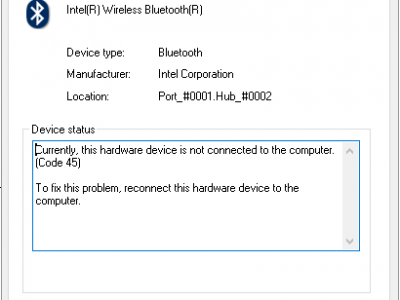
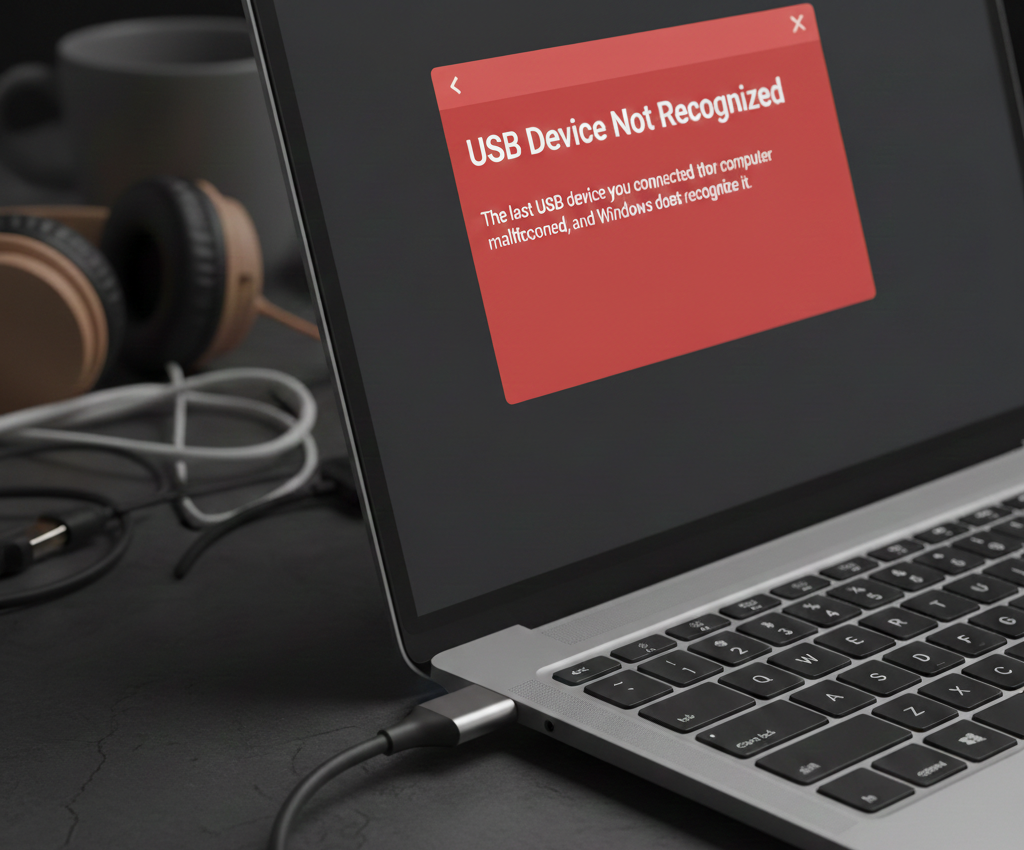
The “USB Device Not Recognized” error appears when Windows detects that something is plugged in but can’t establish a working connection. This specific error requires targeted solutions beyond general USB port troubleshooting.
Solution 1: Try a Different USB Port
The simplest fix for device recognition errors is switching ports. USB 3.0 and USB 2.0 ports handle devices differently, and some older devices work better in USB 2.0 ports. Try both front and rear panel ports to find one that works.
Solution 2: Update Device-Specific Drivers
Beyond general USB drivers, each device has its own drivers. Outdated device drivers can cause recognition failures even when the port and USB controllers work perfectly.
Update Device Drivers:
- Connect the problematic device
- Open Device Manager
- Look for devices with yellow exclamation marks
- Right-click the device and select “Update driver”
- Choose “Search automatically for updated driver software”
- Install any found updates
For many devices, visiting the manufacturer’s website and downloading the latest drivers manually provides better results than automatic updates.
Solution 3: Change USB Root Hub to Generic Driver
Sometimes manufacturer-specific USB drivers cause more problems than they solve. Switching to Windows generic USB drivers can restore compatibility with difficult devices.
Switch to Generic Drivers:
- Open Device Manager
- Expand “Universal Serial Bus controllers”
- Right-click “USB Root Hub” and select “Update driver”
- Choose “Browse my computer for drivers”
- Select “Let me pick from a list of available drivers”
- Choose the generic “USB Root Hub” option
- Click Next and follow prompts
- Restart your computer
Solution 4: Disable Fast Startup
Windows Fast Startup can interfere with USB device initialization during boot. Disabling this feature ensures a complete system startup that properly initializes all USB controllers.
Disable Fast Startup:
- Open Control Panel
- Go to Power Options
- Click “Choose what the power buttons do”
- Click “Change settings that are currently unavailable”
- Uncheck “Turn on fast startup”
- Save changes
- Restart your computer
Solution 5: Check for Windows Hardware Changes
After connecting a device that wasn’t recognized, force Windows to rescan all hardware. This often prompts proper driver installation for stubborn devices.
- Keep the device plugged in
- Open Device Manager
- Click Action → Scan for hardware changes
- Wait for Windows to detect and configure the device
Preventing Future USB Problems
Once you’ve fixed your USB issues, follow these maintenance practices to prevent future problems and extend the lifespan of your ports.
Proper Device Removal
Always use the “Safely Remove Hardware” feature before unplugging USB devices. This ensures Windows completes all file operations and properly closes connections, preventing data corruption and driver conflicts.
Keep Ports Clean
Regularly inspect USB ports for dust and debris. Use compressed air to gently clean ports every few months. Avoid blowing into ports with your mouth, as moisture can damage internal components.
Update Drivers Regularly
Set Windows Update to automatic and check for optional updates monthly. Keeping your system current prevents compatibility issues with new devices and fixes known USB bugs.
Avoid Forcing Connections
Never force a USB connector into a port. USB-A connectors only insert one way, and forcing them can bend internal pins. USB-C is reversible, but resistance still indicates a problem that needs investigation.
Use Quality Cables
Cheap USB cables often lack proper shielding and quality connectors. Invest in certified cables from reputable manufacturers to avoid connectivity problems and data transfer issues.
When to Seek Professional Help
Some USB problems require professional repair or replacement. Recognize when DIY troubleshooting has reached its limits and professional assistance is necessary.
Signs of Hardware Failure
If you see burn marks, smell burning plastic, or notice extremely hot ports, immediately stop using the port and consult a technician. These indicate serious electrical problems that could damage devices or pose safety risks.
Multiple Port Failures
When all USB ports simultaneously fail and none of the troubleshooting steps work, your motherboard’s USB controller may have failed. This typically requires professional diagnosis and potentially motherboard repair or replacement.
Physical Damage
Severely bent pins, broken port housings, or ports that wiggle excessively need professional repair. While some technicians can replace individual ports, others may require motherboard replacement depending on the damage extent.
Frequently Asked Questions
Why do my USB ports work but devices aren’t recognized?
When ports provide power but don’t recognize devices, the issue typically involves driver conflicts, incompatible device drivers, or problems with Windows device enumeration. The port hardware is functioning, but the software layer can’t establish proper communication. Try updating USB drivers, reinstalling USB controllers, and checking Device Manager for devices with yellow exclamation marks.
Can a USB port be fixed if it’s physically damaged?
Minor physical damage like accumulated debris can be fixed by cleaning with compressed air. However, bent pins, broken plastic housings, or loose connections typically require professional repair. For laptops, USB port replacement involves soldering work on the motherboard. Desktop computers sometimes have ports connected via cables that are easier to replace. The repair cost varies significantly based on damage severity and device type.
Why does unplugging and replugging sometimes fix USB issues?
This works because it forces Windows to reinitialize the device connection and reload drivers. When you reconnect a device, Windows goes through its entire device enumeration process again, which can clear temporary communication glitches. However, if you need to do this repeatedly, it indicates an underlying problem with drivers, power management settings, or the port itself that needs proper fixing.
Do USB 2.0 and USB 3.0 ports have different failure rates?
USB 3.0 ports are generally more complex with additional pins and circuitry, which can make them slightly more prone to issues. However, the difference isn’t dramatic. Many “USB 3.0 devices not working” problems stem from driver incompatibilities rather than hardware failure. Sometimes using a USB 3.0 device in a USB 2.0 port (or vice versa) resolves recognition issues, though at reduced speeds.
Can outdated BIOS cause USB ports to stop working?
Yes, absolutely. The BIOS controls fundamental hardware initialization including USB controllers. Outdated BIOS can have bugs that affect USB functionality, especially with newer devices or after Windows updates. Many manufacturers release BIOS updates specifically to fix USB-related problems. However, BIOS updates carry some risk and should only be performed when necessary and with proper preparation.
Why do USB ports stop working after Windows updates?
Windows updates sometimes include new USB drivers that conflict with existing hardware configurations or manufacturer-specific drivers. Updates can also change power management settings that affect USB operation. After major Windows updates, checking Device Manager for driver issues and reviewing power management settings often resolves post-update USB problems. Rolling back problematic drivers through Device Manager can restore functionality while you wait for Microsoft to release a fix.
How can I tell if the problem is my USB device or the port?
Test the device on another computer. If it works elsewhere, your computer’s port or drivers are the problem. Test other devices in the same port on your computer. If nothing works in that specific port, the port is faulty. If some devices work but others don’t, you’re dealing with compatibility or driver issues rather than physical port failure. This systematic testing isolates the problem quickly.
Will resetting Windows fix USB port issues?
A Windows reset can fix software-related USB problems by reinstalling the operating system and all drivers from scratch. This resolves driver corruption, registry issues, and software conflicts. However, physical damage, BIOS problems, or hardware failures won’t be fixed by resetting Windows. Try all other troubleshooting steps first, as resetting Windows is time-consuming and requires backing up your data.
Conclusion
USB port problems and device recognition errors are among the most common computer issues, but they’re also some of the most fixable. Whether you’re dealing with completely non-functional ports or frustrating “USB device not recognized” messages, the solutions in this guide address the vast majority of USB connectivity problems.
Start with the simplest fixes like restarting your computer and testing different ports before moving to more involved solutions like driver reinstallation and BIOS changes. Most users find success within the first few troubleshooting steps, resolving their issues in under 15 minutes.
Remember that prevention is easier than repair. Properly removing devices, keeping ports clean, maintaining updated drivers, and using quality cables significantly reduces the likelihood of future USB problems. When issues do arise, this guide gives you a clear troubleshooting path from quick fixes to advanced solutions.
If you’ve tried everything here and your ports still aren’t working, the problem likely involves hardware failure requiring professional repair. Don’t hesitate to seek expert help when DIY solutions reach their limits—continued troubleshooting with damaged hardware can sometimes make problems worse.