You finally finish downloading a large RAR file, double-click it, and WinRAR throws a checksum error right in your face. It’s one of the most frustrating errors you can hit, especially when you’ve been waiting on that file for a while. The good news? In most cases, the file isn’t a total loss. This guide walks you through every proven method to fix the WinRAR checksum error and get your files back — starting with the easiest fixes first.
What Is a WinRAR Checksum Error?
When you compress files into a RAR or ZIP archive, WinRAR assigns each file a checksum — essentially a mathematical fingerprint based on the file’s exact content. Think of it like a seal on a package. When you extract that archive later, WinRAR recalculates the checksum and compares it to the original. If the two values don’t match, WinRAR stops the extraction and throws a checksum error.
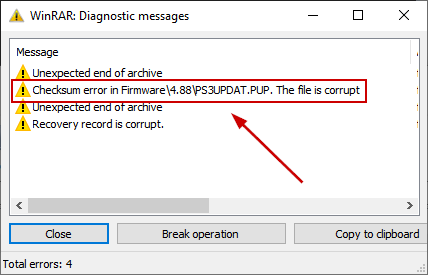
This is WinRAR’s way of telling you that something inside the archive changed after it was compressed — meaning the file is at least partially corrupted. The error message usually looks like one of these:
- Checksum error in the encrypted file [filename]. The file is corrupt.
- CRC failed in [filename]. The file is corrupt.
- Unexpected end of archive.
What Causes the WinRAR Checksum Error?
Before jumping into fixes, it helps to know what went wrong so you can pick the right solution. The most common causes are:
- Incomplete or interrupted download: The file didn’t finish downloading properly, leaving the archive with missing or corrupted data.
- Bad sectors on your drive: If the drive where the RAR file is stored has bad sectors, the data it holds can get corrupted over time.
- Virus or malware interference: Malware can corrupt archive files mid-download or mid-transfer.
- Interrupted file transfer: Copying the RAR file from one drive to another while a power outage or shutdown happened can corrupt it.
- Insufficient disk space: If your destination drive doesn’t have enough free space, WinRAR can’t write the extracted files properly and throws a checksum error.
- Bugs in WinRAR itself: An outdated or corrupted WinRAR installation can mishandle perfectly fine archives.
Fix 1: Use the “Keep Broken Files” Option in WinRAR
This is almost always the first thing to try. By default, when WinRAR detects a corrupted file during extraction, it immediately deletes that file. The “Keep Broken Files” option tells WinRAR to extract whatever it can and keep the partial file instead of throwing it away. For media files like videos, images, or audio, this often gives you a usable (or at least partially usable) file.
- Right-click your RAR or ZIP file.
- Hover over WinRAR and click Extract Files…
- In the window that opens, find the Miscellaneous section.
- Check the box next to Keep Broken Files.
- Choose your extraction destination and click OK.
WinRAR will still show the checksum error message — that’s normal. Just click past it and open the extracted folder. In many cases, especially with video files, the extracted file will work fine despite the error.
Fix 2: Use WinRAR’s Built-In Repair Archive Feature
WinRAR has a built-in repair tool that scans the archive for corruption and attempts to fix it. This works best when the corruption is minor. It’s worth trying before anything else because it doesn’t alter the original file — it creates a repaired copy.
- Right-click your RAR or ZIP file and choose Open with WinRAR.
- Once WinRAR opens, click the Tools menu at the top.
- Select Repair archive.
- Click Browse and choose where you want to save the repaired archive.
- Under Archive Type, select Treat the corrupt archive as RAR (or ZIP, depending on your file type).
- Click OK and wait for the process to complete.
- Click Close when done, then navigate to your chosen folder and try extracting the repaired archive.
Keep in mind this method only fixes minor corruption. If the archive is severely damaged, you’ll likely need to move on to the next fixes.
Fix 3: Re-Download the RAR File
If the archive came from the internet, there’s a good chance the download got interrupted or the connection dropped at some point, leaving you with an incomplete file. Before assuming the worst, try downloading the file again — ideally to a different folder than before, to avoid overwriting and to start fresh.
Make sure you have a stable internet connection before starting the download. If you’re on a slow or unreliable connection, consider using a download manager like Free Download Manager that can pause and resume downloads without corrupting the file.
Fix 4: Run a CHKDSK Scan to Check for Bad Sectors
If you’re getting checksum errors consistently — even with freshly downloaded files — your storage drive might have bad sectors. Bad sectors are physical or logical areas of a drive that can no longer reliably store data, causing corruption in any file that passes through them. Running a CHKDSK scan will identify and mark bad sectors so Windows avoids writing to them.
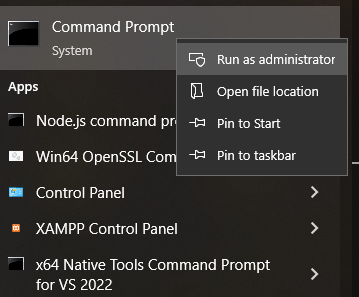
- Press Windows + S and search for Command Prompt.
- Right-click Command Prompt and choose Run as administrator.
- Type the following command and press Enter, replacing C: with the drive letter where your RAR file is stored:
chkdsk C: /f /rThe /f flag fixes errors on the drive, and /r locates bad sectors and recovers readable information. If the drive is your system drive (usually C:), Windows will ask to schedule the scan for the next restart. Type Y and restart your PC. The scan runs before Windows loads and can take anywhere from a few minutes to over an hour depending on your drive size.
Fix 5: Try Extracting with 7-Zip Instead of WinRAR
Sometimes the problem isn’t the archive at all — it’s WinRAR itself. An outdated installation, a software bug, or a corrupted WinRAR install can cause it to report checksum errors on archives that are perfectly fine. A quick way to test this is to try extracting the same archive using a different program. 7-Zip is a free, open-source archiver that handles RAR and ZIP files well.
- Download and install 7-Zip from 7-zip.org.
- Right-click your archive file.
- Hover over 7-Zip in the context menu and choose Extract Here or Extract Files…
If 7-Zip extracts the archive without errors, the issue was with WinRAR and not the file itself. In that case, move to Fix 6 to reinstall WinRAR.
Fix 6: Uninstall and Reinstall WinRAR
If 7-Zip confirmed the file is fine but WinRAR keeps throwing the checksum error, it’s time to do a clean reinstall of WinRAR. Bugs, corrupted program files, or outdated versions can cause WinRAR to behave incorrectly with valid archives.
- Press Windows + R, type appwiz.cpl, and hit Enter to open Programs and Features.
- Find WinRAR in the list, click it, then click Uninstall.
- Confirm the uninstallation and restart your computer.
- After restarting, go to win-rar.com and download the latest version of WinRAR.
- Install it and try extracting your archive again.
Fix 7: Disable Your Antivirus Temporarily
Some antivirus programs interfere with the extraction process — they scan files in real time as they’re being extracted, and in some cases, this scanning causes data to be modified mid-extraction, leading to a checksum mismatch. If none of the above fixes have worked, try temporarily disabling your antivirus and extracting the file again. Remember to re-enable it immediately afterward.
How to Prevent WinRAR Checksum Errors in the Future
Once you’ve fixed the current error, a few simple habits can save you from running into this again. Always test an archive immediately after creating it using WinRAR’s built-in Tools > Test Archive function. If you’re working with multi-part archives (like .part1.rar, .part2.rar), keep all parts in the same folder and never rename them. For large downloads, use a dedicated download manager that can resume interrupted downloads without corrupting the file. Finally, running a quarterly CHKDSK scan on your drives is a good general practice for catching bad sectors before they cause problems.
Frequently Asked Questions
What does a checksum error in WinRAR mean?
A WinRAR checksum error means that when WinRAR tried to extract your archive, the file’s actual data didn’t match the checksum value stored when the archive was created. This usually indicates that the archive or one of its files has been corrupted — either during download, storage, or transfer.
Can I still recover my files after a WinRAR checksum error?
Yes, in many cases you can. Using the “Keep Broken Files” option in WinRAR will extract whatever data is recoverable from the archive, even if it’s partially corrupted. For media files like videos or images, the recovered file will often still work. WinRAR’s built-in Repair Archive feature can also fix minor corruption and let you extract the archive normally.
Is the WinRAR checksum error the same as a CRC error?
Yes, they’re closely related. CRC stands for Cyclic Redundancy Check, which is a type of checksum. When WinRAR reports a CRC failed error, it’s essentially the same situation — the integrity check on the file failed because the data doesn’t match what was originally stored. The same fixes apply to both error types.
Why do I get a checksum error even on freshly downloaded files?
This can happen for a few reasons. The download may have been interrupted without you noticing, leaving the archive incomplete. Your antivirus may have modified or quarantined part of the file during or after download. Bad sectors on your hard drive can also corrupt files as they’re being written. Running a CHKDSK scan and re-downloading the file are the best first steps.
Will reinstalling WinRAR fix the checksum error?
If the archive itself is fine but WinRAR keeps reporting the error, then yes — reinstalling WinRAR can fix it. You can confirm the archive is not at fault by trying to extract it with 7-Zip. If 7-Zip succeeds where WinRAR fails, the problem is with the WinRAR installation and a clean reinstall should resolve it.
How do I fix a checksum error in an encrypted WinRAR file?
Encrypted archives with checksum errors are trickier to fix. If you have the correct password, try the Repair Archive tool in WinRAR first. If the file is simply corrupted beyond what WinRAR can repair, you’ll need to re-obtain the file from the original source. Wrong password attempts can also produce error messages that resemble checksum errors, so double-check that your password is correct before assuming corruption.