If you’ve launched NVIDIA GeForce Experience only to be greeted with “Something went wrong. Try rebooting your PC and then launch GeForce Experience. Error Code: 0x0003” — you’re far from alone. This is one of the most reported NVIDIA errors on Windows, and the good news is that it’s almost always fixable without reinstalling Windows or swapping out hardware. In this guide, we’ll walk you through every proven fix, step by step, so you can get back to updating drivers and optimizing your games as fast as possible.
What Is NVIDIA GeForce Experience Error Code 0x0003?
Error code 0x0003 is a communication breakdown between the GeForce Experience application and NVIDIA’s background services. When it occurs, the app crashes or freezes immediately after launch, blocking access to driver updates, game optimization, and ShadowPlay. The on-screen message tells you to reboot your PC — but in most cases, a simple reboot won’t fix it permanently.
What Causes Error Code 0x0003 in GeForce Experience?
The exact trigger varies from system to system, but the most common causes include:
- NVIDIA background services stopped or not running correctly — Services like NVIDIA Display Container LS, NVIDIA LocalSystem Container, or NVIDIA NetworkService Container may have crashed.
- Corrupted or outdated GPU drivers — A broken driver update can destabilize the entire GeForce Experience installation.
- NVIDIA Telemetry Container permission issues — Windows sometimes blocks this service from interacting with the desktop, which breaks the connection to NVIDIA servers.
- Network adapter misconfiguration — A misconfigured Winsock or stuck network adapter can prevent GeForce Experience from reaching NVIDIA’s servers.
- Conflicting software — Antivirus programs, VPNs, or recent Windows updates can interfere with NVIDIA services in the background.
How to Fix NVIDIA GeForce Experience Error Code 0x0003
Work through these fixes in order. Most users resolve the issue within the first two or three methods, so you likely won’t need to go through the entire list.
Fix 1: Restart All NVIDIA Processes from Task Manager
Before trying anything complex, force-close all NVIDIA-related processes and give everything a clean restart. This works surprisingly often when the error is caused by a stuck or frozen background process.
- Press Ctrl + Shift + Esc to open Task Manager.
- In the Processes tab, look for every entry with “NVIDIA” in the name.
- Right-click each one and select End Task.
- Once all NVIDIA processes are closed, restart your PC.
- Open GeForce Experience and check whether the error is gone.
Fix 2: Restart NVIDIA Background Services
If the error persists, the issue is likely with one or more NVIDIA services that stopped running properly in the background.
- Press Windows + R, type
services.msc, and press Enter. - In the Services window, locate these three services:
- NVIDIA Display Container LS
- NVIDIA LocalSystem Container
- NVIDIA NetworkService Container
- Right-click each one and select Restart. If any show a “Stopped” status, right-click and choose Start instead.
- After all three are running, relaunch GeForce Experience.
Fix 3: Allow NVIDIA Telemetry Container to Interact with the Desktop
This is one of the most effective fixes for error code 0x0003. Windows sometimes restricts the NVIDIA Telemetry Container from accessing system resources, which cuts off GeForce Experience’s ability to connect to NVIDIA’s servers.
- Open Services again (Windows + R → type
services.msc→ Enter). - Scroll down and find NVIDIA Telemetry Container.
- Right-click it and select Properties.
- Click the Log On tab.
- Select Local System Account and check “Allow service to interact with desktop.”
- Click Apply, then OK.
- Right-click the service again and select Restart, then reboot your PC.
After rebooting, open GeForce Experience. This single change resolves the error for a large number of users.
Fix 4: Reset Your Network Adapter with Winsock Reset
A misconfigured network adapter can quietly prevent GeForce Experience from reaching NVIDIA’s servers. Running a Winsock reset clears those misconfigurations and restores the adapter to its default state.
- Press Windows + R, type
cmd, and press Ctrl + Shift + Enter to open Command Prompt as Administrator. - Type the following command and press Enter:
netsh winsock reset - Wait for the confirmation message, then restart your computer.
- Launch GeForce Experience and check if the error is resolved.
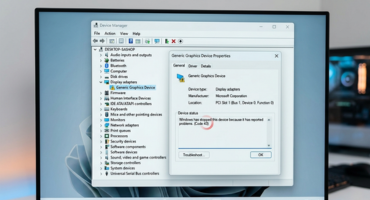
Fix 5: Update or Clean Install Your NVIDIA GPU Drivers
Corrupted or outdated drivers are a major trigger for error code 0x0003. A clean driver installation removes all leftover files from previous installations and starts fresh, which eliminates most driver-related conflicts.
- Visit NVIDIA’s official driver download page.
- Select your GPU model and operating system to find the correct driver.
- Download and run the installer.
- When asked, choose “Custom Installation” and tick “Perform a clean installation.”
- Complete the installation and restart your PC.
A manual clean install from NVIDIA’s official site is almost always more reliable than using Device Manager’s automatic driver search.
Fix 6: Reinstall GeForce Experience Completely
If none of the above have worked, the GeForce Experience installation itself is likely corrupted. A full uninstall and reinstall gives you a clean slate.
- Press Windows + R, type
appwiz.cpl, and hit Enter to open Programs and Features. - Find NVIDIA GeForce Experience in the list, right-click it, and select Uninstall.
- Also uninstall any other NVIDIA-related programs you don’t need (keep drivers if they’re working).
- Restart your PC.
- Download the latest GeForce Experience installer from NVIDIA’s official website and run it.
- After installation is complete, reboot your PC and check if the issue is gone.
Which Fix Should You Try First?
Here’s a quick cheat sheet based on when your error appeared:
- Error appeared after the PC was left on for hours → Start with Fix 1 (restart processes)
- Error appeared after a Windows update → Try Fix 2 or Fix 3 first
- Error appeared right after a driver update → Go straight to Fix 5 (clean driver install)
- None of the above helped → Fix 6 (full reinstall of GeForce Experience)
Frequently Asked Questions
What does NVIDIA GeForce Experience error code 0x0003 mean?
Error code 0x0003 means GeForce Experience has lost communication with one or more of NVIDIA’s background services. This can happen due to corrupted drivers, stopped NVIDIA services, network adapter problems, or restricted permissions on the NVIDIA Telemetry Container. The result is that the app fails to launch and displays a “Something went wrong” message.
Does error code 0x0003 mean my GPU is broken?
No. Error code 0x0003 is a software-level issue, not a hardware failure. Your GPU is almost certainly fine. The problem lies within the GeForce Experience application, NVIDIA services, or the driver installation — none of which indicate physical damage to your graphics card.
Why does error 0x0003 keep coming back after I fix it?
If the error returns repeatedly, it’s usually because Windows updates keep resetting NVIDIA Telemetry Container permissions, or because a third-party program like an antivirus or VPN is blocking NVIDIA services. Try adding GeForce Experience and its related services to your antivirus whitelist, and check for any pending Windows updates that may conflict with NVIDIA software.
Will reinstalling GeForce Experience delete my games or saved data?
No. Reinstalling GeForce Experience will not touch your game files, save data, or GPU driver settings. It only resets the GeForce Experience app itself, including its optimization profiles. After reinstalling, you may need to re-scan your games library so the app can rebuild those profiles.
Final Thoughts
NVIDIA GeForce Experience error code 0x0003 is annoying, but it’s rarely a sign of anything serious. In the majority of cases, restarting NVIDIA services, adjusting the Telemetry Container permissions, or performing a clean driver installation will have everything working again within minutes. Start from Fix 1 and work your way down — chances are you’ll find your solution before reaching the end of the list. If this guide helped you out, feel free to share it with other Windows users running into the same problem.