If Device Manager is showing a yellow warning triangle next to your Bluetooth adapter, you’re dealing with the Intel Wireless Bluetooth driver error, one of the most common connectivity headaches on Windows laptops. It usually shows up as Code 10, Code 43, or Code 39, and it stops your mouse, headphones, or keyboard from connecting at all. The good news: in almost every case this is a software problem, not a dead Bluetooth chip, and you can fix it yourself in under 15 minutes.
Below are the methods that actually work, in the order you should try them — starting with the quick fixes and ending with the “nuclear option” clean reinstall that solves this for good.
What Causes the Intel Wireless Bluetooth Driver Error?
Before jumping into fixes, it helps to know what you’re dealing with. This error pops up for a handful of repeat-offender reasons:
- 🎯 A botched Windows Update. Microsoft sometimes pushes a generic Bluetooth driver that conflicts with Intel’s own, especially right after a feature update.
- ⚡ Outdated or corrupted driver files. Drivers degrade over time or get partially overwritten during installs.
- Fast Startup interference. Windows’ Fast Startup feature can prevent the Bluetooth radio from fully powering down and back up, leaving it in a broken state.
- Driver signature issues. Occasionally Windows rejects an Intel driver because its digital signature doesn’t validate, throwing Code 39.
- Leftover files from a previous install. Old PROSet/Wireless software fragments can clash with a fresh driver install.
Whatever the trigger, the fixes below cover all of them, from the 2-minute restart to the full clean reinstall.
Method 1: Restart and Run the Bluetooth Troubleshooter
This sounds too simple to work, but skipping it wastes more time than it saves — a huge share of driver glitches clear up with a clean restart, especially after waking from sleep.
- Save your work and do a full restart (not just sleep) — Start > Power > Restart.
- After it boots back up, open Settings > System > Troubleshoot > Other troubleshooters.
- Find Bluetooth and click Run.
- Let it scan and apply any fixes it finds, then restart again.
If Device Manager still shows the error after this, move to Method 2.
Method 2: Update the Driver Through Device Manager
- Press Win + X and select Device Manager.
- Expand Bluetooth and find Intel(R) Wireless Bluetooth(R).
- Right-click it and choose Update driver.
- Select Search automatically for drivers and let Windows look for an update online.
- Restart your PC once it finishes, whether or not it found anything.
⚠️ Heads up: Windows’ built-in search often reports “the best driver is already installed” even when a newer one exists on Intel’s site. If that happens, don’t stop here — go to Method 3.
Method 3: Download the Latest Driver Directly From Intel
This is the method that resolves the issue most reliably, because it bypasses whatever Windows Update last installed and pulls the current, properly signed driver straight from the source.
- Open the Intel Download Center in your browser and search for “Wireless Bluetooth”.
- Download the latest Intel Wireless Bluetooth Driver for Windows 10/11 package matching your system (most modern laptops need the 64-bit version).
- Close all other programs, then run the installer.
- Accept the license terms and let the installer finish — it will handle the uninstall/reinstall internally.
- Restart your computer.
🎯 Tip: identify your exact Wi-Fi/Bluetooth chip first (Device Manager > Network Adapters, e.g. “Intel Wi-Fi 6 AX201”) so you grab the matching Bluetooth package instead of guessing.
Method 4: Disable Fast Startup
Fast Startup is a power-saving feature that essentially hibernates your PC instead of fully shutting it down. It’s known to leave the Intel Bluetooth radio in a half-initialized state, which Device Manager reports as a driver error.
- Open Control Panel > Power Options.
- Click Choose what the power buttons do on the left sidebar.
- Click Change settings that are currently unavailable (needs admin rights).
- Uncheck Turn on fast startup (recommended).
- Click Save changes, then fully shut down (not restart) and power back on.
Method 5: Clean Uninstall and Reinstall (The Fix That Works When Nothing Else Does)
If you’ve tried everything above and the error keeps coming back, a clean reinstall clears out leftover driver fragments that a normal update doesn’t touch. This is the same process Intel’s own support documentation recommends for persistent Bluetooth driver conflicts.
Step 1: Download drivers first (don’t skip this)
Before disconnecting anything, download both the Wireless and Bluetooth driver packages for your adapter from Intel’s Download Center and save them somewhere easy to find, like your Desktop.
Step 2: Disable internet access
Disconnect Wi-Fi or unplug Ethernet. Keep it disabled for the whole process — this prevents Windows Update from auto-reinstalling a driver mid-cleanup.
Step 3: Uninstall the software first
- Go to Settings > Apps > Installed apps.
- Uninstall any entry called Intel® PROSet/Wireless Software or Intel® Wireless Bluetooth®.
- When prompted, choose Discard Settings.
- Restart with internet still disabled.
Step 4: Remove the device drivers in Device Manager
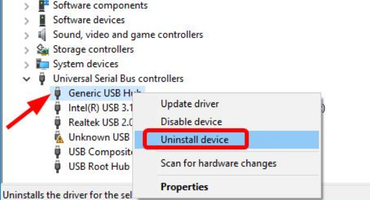
- Open Device Manager, expand Bluetooth, right-click Intel(R) Wireless Bluetooth(R), choose Uninstall device, and check Delete the driver software for this device.
- Do the same for the Wi-Fi adapter under Network Adapters if you’re also having Wi-Fi issues.
- Repeat the uninstall step if the option reappears — it can take 2-3 passes to fully clear it out.
Step 5: Reinstall in the correct order
- Run the Bluetooth driver installer first.
- Then run the Wireless (Wi-Fi) driver installer.
- Shut down fully (not restart), wait a few seconds, then power on.
- Re-enable your internet connection.
✅ This order matters — installing Bluetooth before Wi-Fi avoids a known conflict where the wireless driver claims a shared resource the Bluetooth driver needs during setup.
Still Not Fixed? Check These Edge Cases
| Symptom | Likely Cause | What To Do |
|---|---|---|
| Code 39 with a signature error | Windows rejected the driver’s digital signature | Roll back to the previous driver version via Device Manager > Driver tab > Roll Back Driver, then wait for Intel’s next signed release |
| Bluetooth toggle is greyed out | Corrupted Bluetooth support service | Open services.msc, find “Bluetooth Support Service,” set it to Automatic and start it |
| Error returns after every restart | BIOS-level Bluetooth setting or outdated BIOS | Check your BIOS for a Bluetooth/wireless toggle and update BIOS from your laptop manufacturer’s site |
| Worked fine until a recent Windows Update | Update overwrote your driver with a generic one | Reinstall directly from Intel’s site as in Method 3 — the Intel version usually supersedes the Windows one |
If none of this works and Device Manager still won’t recognize the adapter at all, it’s worth considering a hardware fault — though this is rare. At that point, contacting your laptop manufacturer’s support is the next step.
What does the Intel Wireless Bluetooth driver error mean?
It means Windows can’t properly communicate with your Intel Bluetooth adapter, usually shown as Code 10, 43, or 39 in Device Manager. It’s almost always caused by an outdated, corrupted, or conflicting driver rather than a hardware failure.
Will reinstalling the driver delete my paired Bluetooth devices?
Yes, in most cases your previously paired devices will need to be re-paired after a driver reinstall. This only takes a minute or two per device once Bluetooth is working again.
Why does Windows say my driver is up to date when it isn’t?
Windows Update only checks against drivers Microsoft has already approved for distribution, which often lag behind Intel’s own release schedule. Downloading directly from Intel’s site usually gets you a newer version than what Windows reports as “current.”
Does disabling Fast Startup slow down my boot time?
Slightly — Fast Startup typically shaves a few seconds off boot by partially hibernating instead of fully shutting down. For most users this trade-off is worth it if it resolves a recurring Bluetooth driver error.
Should I use third-party driver updater tools?
It’s safer to download directly from Intel’s official Download Center. Third-party driver tools can install outdated, mismatched, or even bundled unwanted software, which can introduce new problems instead of fixing the original one.