You press the Windows key or click the Start button — and nothing happens. Or maybe the Start menu opens for a split second and immediately closes. Either way, it’s one of the most disruptive issues you can hit on Windows because the Start menu is how you access almost everything else on your PC. The good news is that in the vast majority of cases, this is a software glitch, not a hardware problem, and it can be fixed without reinstalling Windows. Here are 7 fixes that actually work, ordered from quickest to most thorough.
What Causes the Windows Start Menu to Stop Working?
Before jumping into fixes, it helps to understand what’s likely broken. The most common culprits behind a non-responsive Start menu are a frozen Windows Explorer process, corrupted system files, a recent Windows update that introduced a bug, third-party shell customization tools (like ExplorerPatcher or StartAllBack) that conflict with Windows, a corrupted AppX package for the Start menu itself, or a damaged user profile. Knowing what triggered the issue in your case — for example, did it start right after a Windows update or after installing a new app? — will help you jump to the most relevant fix faster.
Fix 1: Restart Your PC
Before anything else, do a full restart — not just Sleep or Hibernate. A proper reboot clears memory, resets background services, and often resolves temporary glitches affecting the Start menu. Click the Power icon on your Lock Screen or press Alt + F4 on your Desktop and select Restart. If you can’t get to the Desktop at all, hold the physical power button on your PC for 5 seconds to force a shutdown, then turn it back on.
If the Start menu works after a restart but breaks again later, that points to a deeper issue — keep reading.
Fix 2: Restart Windows Explorer
The Start menu runs as part of the Windows Explorer process. If Explorer freezes or crashes, the Start menu goes down with it. Restarting Explorer takes about 10 seconds and fixes the issue surprisingly often.
- Press Ctrl + Shift + Esc to open Task Manager.
- In the Processes tab, scroll down and find Windows Explorer (it has a yellow folder icon).
- Right-click it and select Restart.
Your taskbar and Desktop will flicker for a moment as Explorer restarts. Once it’s back, try the Start menu. If it works, you’re done. If it breaks again after a few minutes, move to the next fix.
If You Can’t Open Task Manager
If Task Manager itself is inaccessible, try pressing Ctrl + Alt + Delete and selecting Task Manager from the options screen. Alternatively, right-click an empty area of the taskbar and choose Task Manager from the context menu.
Fix 3: Uninstall Third-Party Shell Customization Tools
This is one of the most common causes of a broken Start menu in 2026, especially after Windows updates. Apps like ExplorerPatcher, StartAllBack, Open-Shell, and TranslucentTB modify how the taskbar and Start menu look and behave. When Windows updates, these tools often break immediately and take the Start menu down with them.
If you have any of these installed, uninstall them right away:
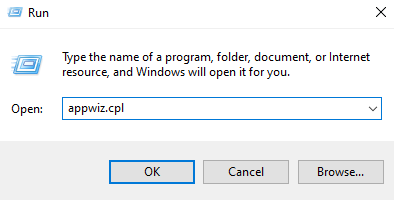
- Press Windows + R, type appwiz.cpl, and hit Enter to open Programs and Features.
- Find the customization tool in the list, click it, and select Uninstall.
- If you can’t reach Programs and Features because the Start menu is broken, re-download the original installer for the app from its website — most installers include an Uninstall option when you run them on a machine where the app is already installed.
- Restart your PC after uninstalling.
After removing these tools and restarting, the Start menu typically returns to normal immediately.
Fix 4: Re-Register the Start Menu Using PowerShell
If the AppX package that powers the Start menu gets corrupted, Windows can’t launch it properly even though the process appears to be running. The fix is to force Windows to re-register the package using a PowerShell command. This is one of the most effective fixes for persistent Start menu issues on both Windows 10 and Windows 11.
- Press Ctrl + Shift + Esc to open Task Manager.
- Click File > Run new task.
- Type PowerShell, check the box that says “Create this task with administrative privileges,” and click OK.
- In the PowerShell window, paste the following command and press Enter:
Get-AppxPackage -AllUsers Microsoft.Windows.ShellExperienceHost | Foreach {Add-AppxPackage -DisableDevelopmentMode -Register "$($_.InstallLocation)\AppXManifest.xml"}- Wait for it to finish (you may see some red text — that’s normal, ignore it). Then paste this second command and press Enter:
Get-AppxPackage -AllUsers Microsoft.Windows.StartMenuExperienceHost | Foreach {Add-AppxPackage -DisableDevelopmentMode -Register "$($_.InstallLocation)\AppXManifest.xml"}- Close PowerShell and restart your PC.
This re-registers both the Shell Experience Host and the Start Menu Experience Host — the two core packages that power the Start menu. Most users who reach this step find their Start menu fully restored after a reboot.
Fix 5: Run SFC and DISM to Repair Corrupted System Files
If the re-registration didn’t help, corrupted Windows system files might be the root cause. The System File Checker (SFC) scans your Windows installation for damaged files and repairs them automatically. If SFC finds issues it can’t fix on its own, DISM (Deployment Image Servicing and Management) can pull fresh files from Windows Update to repair your system image.
Run them in this order:
- Open Task Manager with Ctrl + Shift + Esc, click File > Run new task, type cmd, check “Create this task with administrative privileges,” and click OK.
- In the Command Prompt, type the following and press Enter:
sfc /scannow- Wait for the scan to complete — it can take 10–20 minutes. Do not close the window. When it finishes, it will report whether it found and repaired any issues.
- Regardless of what SFC reports, now run DISM by typing this command and pressing Enter:
DISM /Online /Cleanup-Image /RestoreHealth- This can take 10–15 minutes and requires an active internet connection since it pulls repair files from Windows Update. When it finishes, restart your PC and test the Start menu.
Fix 6: Check for Windows Updates (Or Uninstall a Bad One)
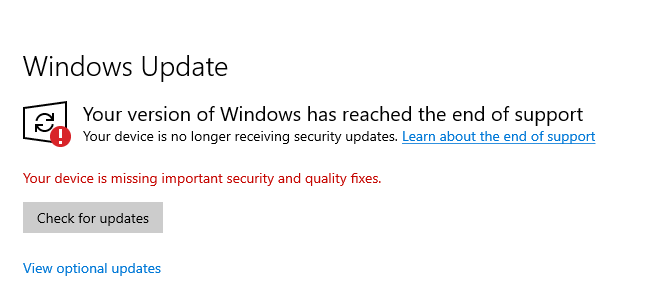
Sometimes a Windows update introduces a bug that breaks the Start menu — and Microsoft usually releases a patch within days. Make sure you’re fully up to date so you get the fix.
- Press Windows + I to open Settings (this works even when the Start menu is broken).
- Go to Windows Update (on Windows 11) or Update & Security > Windows Update (on Windows 10).
- Click Check for updates and install anything available.
- Restart your PC.
If the problem started immediately after a specific update, you can uninstall that update instead:
- Go to Settings > Windows Update > Update history.
- Scroll down and click Uninstall updates.
- Find the most recently installed update, right-click it, and select Uninstall.
- Restart your PC.
Fix 7: Create a New User Account
If the Start menu works fine on a different user account but not yours, the issue is a corrupted user profile rather than the Windows installation itself. The cleanest fix in this case is to create a new account and migrate your files over.
- Press Windows + I to open Settings.
- Go to Accounts > Family & other users (Windows 11) or Accounts > Other users (Windows 10).
- Click Add account and follow the prompts to create a new local account.
- Make the new account an Administrator.
- Sign out of your current account and sign in to the new one.
If the Start menu works perfectly on the new account, your original profile is corrupted. You can then copy your files from the old profile folder (located in C:\Users\YourOldUsername) to the new one. This is time-consuming but is a reliable permanent fix when no other method works.
Last Resort: Reset Windows
If every method above has failed, a Windows Reset is the final option. The good news is you can reset Windows and keep all your personal files — it only removes apps and settings. Here’s how:
- Press Windows + I to open Settings.
- Go to System > Recovery (Windows 11) or Update & Security > Recovery (Windows 10).
- Click Reset PC and choose “Keep my files.”
- Follow the on-screen instructions to complete the reset.
The process takes anywhere from 30 minutes to over an hour depending on your system. After the reset, Windows will be fresh but your documents, photos, and other personal files will remain intact. You’ll need to reinstall your apps.
Frequently Asked Questions
Why did my Windows Start menu suddenly stop working?
The most common triggers are a Windows update that introduced a bug, a third-party shell customization tool (like ExplorerPatcher or StartAllBack) conflicting with Windows after an update, a frozen Windows Explorer process, or corrupted system files. In rarer cases, a damaged user profile or bad sectors on your drive can also be responsible. If the issue started immediately after a Windows update or installing new software, that’s almost always the cause.
How do I open the Start menu if clicking it doesn’t work?
Press the Windows key on your keyboard — it often works even when clicking the taskbar button doesn’t. You can also press Ctrl + Esc as an alternative shortcut. If neither works, try restarting Windows Explorer through Task Manager (Ctrl + Shift + Esc), which often brings the Start menu back immediately without needing a full reboot.
Will running SFC or DISM delete my files?
No. Both SFC and DISM only scan and repair Windows system files — they do not touch your personal files, documents, photos, or installed apps. They are completely safe to run and are in fact Microsoft’s official recommended tools for repairing a damaged Windows installation.
My Start menu works on a new user account but not my main account. What does that mean?
It means your main user profile is corrupted, not the Windows installation itself. The fix is to create a new user account, migrate your personal files from the old profile folder (C:\Users\YourOldUsername) to the new one, and use the new account going forward. This is more time-consuming than the other fixes but is very reliable when no other method resolves the issue.
Does resetting Windows delete my personal files?
Not if you choose the right option. When you go through the Reset PC process, Windows gives you two choices: Keep my files or Remove everything. If you select Keep my files, Windows reinstalls itself but leaves your documents, photos, videos, and other personal data untouched. You will need to reinstall your apps afterward, but your files will be safe.
Can ExplorerPatcher or StartAllBack cause the Start menu to stop working?
Yes, and this is one of the most frequent causes of a broken Start menu in 2026. These tools modify how the taskbar and Start menu behave at a deep level. When Windows updates, these modifications often break immediately and prevent the Start menu from launching. If you have either of these tools installed, uninstalling them — and then restarting your PC — is the first thing you should try.