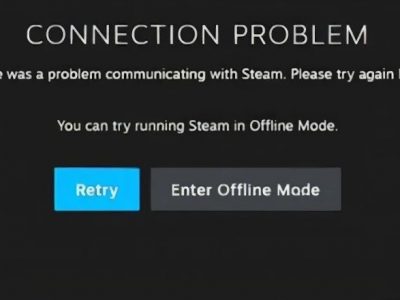
Rubber-banding, sudden spikes, or getting kicked mid-match: these are the moments that make you want to throw the controller. If you need to fix internet issues for gaming, the first step is figuring out which problem you actually have, because lag, high ping and disconnects have different causes. This guide walks you through each one in plain steps.
First, Find Out What Kind of Problem You Have
Open Command Prompt and run ping 8.8.8.8 -n 50. Then read the result:
- Lost packets above 0%: you have packet loss, which causes rubber-banding and disconnects.
- Big gaps between minimum and maximum times: you have jitter, which feels like random lag spikes.
- Consistently high average time: you have high latency. Our separate guide on how to fix internet latency for gaming covers this one in detail.
How to Fix Internet Issues for Gaming: Stop Lag and Packet Loss
Test Your Cable and Connection Type
A damaged or loose Ethernet cable is a classic cause of packet loss. Replace it with a known good one and plug it in firmly. If your PC does not detect the cable at all, check this fix for an Ethernet cable that is not working. On Wi-Fi, move closer to the router or switch to the 5 GHz band.
Change Your Wi-Fi Channel
In apartment buildings, dozens of routers compete for the same channels. Log in to your router, pick a less crowded channel (1, 6 or 11 on 2.4 GHz), and save. If you do not know how to open the admin page, follow our guide on finding your router IP address.
Check for Bufferbloat
Bufferbloat happens when your connection is saturated by downloads or uploads and ping shoots up. Run a bufferbloat test while nothing else is using the network. If you get a poor grade, enable Smart Queue Management (SQM) or QoS in your router settings and limit speeds to about 90% of your real line speed.
How to Fix High Ping
- Close apps that use the network in the background (cloud backups, launchers, streaming).
- Disable your VPN while playing.
- Choose the nearest game server region manually.
- Switch DNS to 1.1.1.1 or 8.8.8.8, then run
ipconfig /flushdns.
How to Stop Random Disconnects
Reset the Windows Network Stack
Open Command Prompt as administrator and run these commands one by one, then restart your PC:
netsh winsock reset
netsh int ip reset
ipconfig /release
ipconfig /renew
ipconfig /flushdns
Stop Windows From Turning Off Your Adapter
In Device Manager, open your network adapter’s Properties, go to Power Management, and untick “Allow the computer to turn off this device to save power”. This alone fixes many random Wi-Fi drops.
Update or Reinstall the Network Driver
Download the latest driver from your motherboard or adapter manufacturer instead of relying only on Windows Update. A corrupted driver can drop the connection under load.
Restart the Router and Check Its Firmware
Power it off for 30 seconds, turn it back on, and install any firmware update. Old firmware causes strange disconnects, especially with newer devices.
When the Problem Is Your ISP
If everything above checks out, run pathping 8.8.8.8 and look at where the loss begins. Loss on the very first hop points to your router or cable; loss further down the chain points to your provider. Screenshot the results and send them to your ISP support. They tend to take a report with numbers much more seriously than “my internet is bad”.
FAQ
Why does my game lag even with fast internet?
Speed and stability are different things. Lag usually comes from packet loss, jitter, Wi-Fi interference or a saturated connection, not from low bandwidth.
Why do I keep getting disconnected from online games?
Common causes are Wi-Fi power saving, a faulty cable, outdated network drivers, router problems, or packet loss on your ISP line.
Does resetting Winsock delete my files?
No. It only resets network settings to their defaults. You may need to reconnect to Wi-Fi and restart your PC afterwards.
Final Thoughts
Find the symptom, then fix the matching cause. Start with the cable and router, reset the network stack, and keep your pathping results handy if your ISP turns out to be the culprit.