Nothing disrupts your workflow or gaming session quite like a lagging mouse. When your cursor stutters, jumps, or refuses to move smoothly across the screen, every click becomes a frustrating exercise in patience. Whether you’re working on an important presentation, editing photos, or trying to land that perfect headshot in your favorite game, mouse lag can transform a simple task into an infuriating ordeal.
This comprehensive guide tackles mouse lag problems across all major brands including Logitech, Razer, Microsoft, and generic mice. We’ll explore why your mouse is lagging and provide proven solutions that work on both Windows 10 and Windows 11. Most mouse lag issues can be resolved in under 15 minutes without any special tools or technical expertise.
What is Mouse Lag and Why Does it Happen?
Mouse lag, also called mouse stuttering or cursor lag, occurs when there’s a delay between moving your physical mouse and seeing the cursor respond on screen. This delay can manifest in several ways: the cursor might move in jerky steps instead of smoothly, freeze momentarily before continuing, or feel sluggish as if dragging through mud.
The lag can range from barely noticeable micro-stutters to severe delays of several seconds. In gaming scenarios, even a 50-100 millisecond delay can mean the difference between victory and defeat. For professional work, mouse lag disrupts precision tasks like photo editing, CAD design, or video editing.
Understanding what causes your specific lag problem helps you apply the right fix faster and avoid wasting time on irrelevant solutions.
Common Causes of Mouse Lagging
Wireless Interference and Signal Issues
Wireless mice depend on stable radio signals between the mouse and its receiver. Other wireless devices operating on the 2.4GHz frequency band—including WiFi routers, Bluetooth speakers, wireless keyboards, and even microwave ovens—can create interference that disrupts this connection. Physical obstacles like thick walls or metal surfaces between your mouse and receiver compound these problems.
Outdated or Corrupted Drivers
Mouse drivers translate hardware movements into signals your operating system understands. When these drivers become outdated after a Windows update, or corrupted due to system crashes, your mouse performance suffers dramatically. This issue affects all mouse brands but is particularly common with gaming mice that rely on manufacturer-specific software.
High System Resource Usage
When your CPU, RAM, or disk usage reaches near-maximum capacity, Windows struggles to process mouse inputs quickly. Background applications, system scans, Windows updates, or malware can consume resources that should be allocated to smooth cursor movement.
Graphics Driver Conflicts
Surprisingly, graphics card drivers significantly impact mouse performance. Outdated or buggy GPU drivers can interfere with Windows visual effects and cursor rendering, creating lag even when the mouse hardware and drivers are perfect.
Power Management Settings
Windows aggressively manages power consumption by selectively suspending USB devices and Bluetooth connections. While this extends laptop battery life, it can randomly disable or throttle your mouse, causing intermittent lag spikes that seem to have no pattern.
Physical Hardware Problems
Dirty mouse sensors, worn-out mouse pads, low batteries in wireless mice, faulty USB ports, or damaged cables all create tracking and responsiveness issues. Sometimes the simplest explanation is the correct one—your hardware needs maintenance or replacement.
How to Fix Mouse Lag on Windows 10 and Windows 11
Solution 1: Restart Your Computer
Before diving into complex troubleshooting, restart your PC. This clears temporary memory issues, resets USB connections, and terminates background processes that might be causing lag. It’s remarkably effective for temporary glitches.
After restarting, immediately test your mouse. If the lag returns after a few minutes or when you open specific programs, you’ll need to apply more targeted fixes.
Solution 2: Check Your Battery and Wireless Connection
For wireless mice, low battery power is the number one cause of lag. Even if your mouse still functions, depleted batteries create erratic behavior and stuttering.
Quick Battery Checks:
- Replace batteries in wireless mice, even if they seem to work
- Fully charge rechargeable mice via cable
- Check battery level in mouse software (Logitech Options, Razer Synapse, etc.)
- Test if lag disappears when using the charging cable in wired mode
Improve Wireless Signal:
- Move the USB receiver closer to your mouse (use a USB extension cable if needed)
- Remove obstacles between mouse and receiver
- Switch to a different USB port, preferably on the back of your computer
- Turn off nearby wireless devices temporarily to test for interference
- Keep your mouse receiver away from WiFi routers and USB 3.0 ports (they emit interference)
Solution 3: Update Your Mouse Drivers
Driver updates fix bugs, improve compatibility with Windows updates, and optimize performance. Both generic and brand-specific drivers need regular updating.
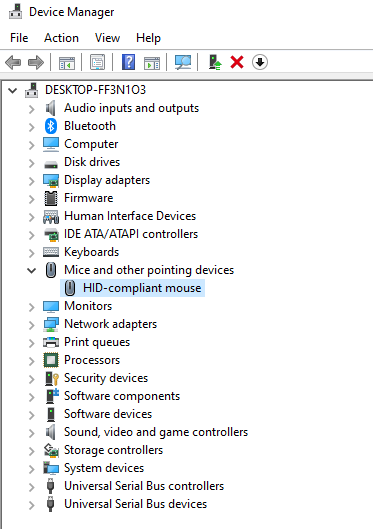
Update Drivers via Device Manager:
- Press Windows + X and select Device Manager
- Expand “Mice and other pointing devices”
- Right-click your mouse and select “Update driver”
- Choose “Search automatically for updated driver software”
- Install any available updates
- Restart your computer
Brand-Specific Driver Updates:
For Logitech Mice: Download Logitech Options or Logi Options+ from the Logitech website. These programs automatically detect your mouse model and install the correct drivers. They also provide firmware updates that can fix lag issues.
For Razer Mice: Install Razer Synapse 3 from the Razer support site. Synapse manages drivers and firmware while allowing you to customize settings. Ensure you update to the latest Synapse version as older versions can cause lag.
For Microsoft Mice: Windows Update usually handles Microsoft mouse drivers automatically. Check for optional updates in Windows Update settings—driver updates often appear there.
Solution 4: Disable Enhanced Pointer Precision
Enhanced Pointer Precision is a Windows feature that adjusts cursor speed based on how fast you move your mouse. While helpful for some users, it introduces processing delays that gamers and precision users find problematic.
Disable Enhanced Pointer Precision:
- Press Windows key and type “mouse settings”
- Click “Mouse settings” in results
- Click “Additional mouse options”
- Go to the “Pointer Options” tab
- Uncheck “Enhance pointer precision”
- Click “Apply” then “OK”
Test your mouse immediately after making this change. Many users report instant improvement in responsiveness.
Solution 5: Disable Pointer Trails
Pointer trails create a visual effect showing the cursor’s movement path. This accessibility feature can cause stuttering and lag on some systems, particularly after Windows updates.
Turn Off Pointer Trails:
- Open Control Panel and search for “Mouse”
- Click “Mouse” to open Mouse Properties
- Go to “Pointer Options” tab
- Uncheck “Display pointer trails”
- Click “OK”
Solution 6: Disable Fast Startup
Fast Startup is a Windows feature that hibernates system processes instead of fully shutting down. This can prevent proper USB device initialization during boot, causing mouse lag.
Disable Fast Startup:
- Open Control Panel
- Go to “Power Options”
- Click “Choose what the power buttons do”
- Click “Change settings that are currently unavailable”
- Uncheck “Turn on fast startup (recommended)”
- Click “Save changes”
- Restart your computer
Solution 7: Adjust Power Management Settings
Windows can automatically power down USB ports and Bluetooth adapters to save energy. This causes mice to intermittently disconnect or lag.
Disable USB Power Management:
- Open Device Manager
- Expand “Universal Serial Bus controllers”
- Right-click each “USB Root Hub” and select “Properties”
- Go to “Power Management” tab
- Uncheck “Allow the computer to turn off this device to save power”
- Click “OK”
- Repeat for all USB Root Hub entries
Disable Selective Suspend:
- Open Control Panel > Power Options
- Click “Change plan settings” for your active power plan
- Click “Change advanced power settings”
- Expand “USB settings”
- Expand “USB selective suspend setting”
- Set both “On battery” and “Plugged in” to “Disabled”
- Click “Apply” then “OK”
Solution 8: Update Your Graphics Card Drivers
Graphics drivers directly affect cursor rendering and visual effects. Buggy GPU drivers are a common hidden cause of mouse lag.
Update NVIDIA Graphics Drivers:
- Open GeForce Experience or download it from NVIDIA’s website
- Click the “Drivers” tab
- Click “Check for Updates”
- Download and install the latest driver
- Restart your computer
Update AMD Graphics Drivers:
- Download AMD Adrenalin software from AMD’s website
- Install and open the software
- Click “Update” under the Driver section
- Install available updates
- Restart your computer
Disable G-Sync or FreeSync Temporarily:
Adaptive sync technologies can sometimes cause mouse lag. Test if disabling G-Sync (NVIDIA) or FreeSync (AMD) in your graphics control panel resolves the issue.
Solution 9: Disable Windows Visual Effects
Windows visual effects like transparency and animations consume resources. Reducing these effects can improve mouse responsiveness.
Adjust Visual Effects:
- Press Windows + R and type “sysdm.cpl”
- Press Enter
- Go to “Advanced” tab
- Under Performance, click “Settings”
- Select “Adjust for best performance” OR
- Choose “Custom” and uncheck visual effects you don’t need
- Click “Apply” then “OK”
Solution 10: Reduce Background Process Load
High CPU or RAM usage from background applications directly impacts mouse responsiveness.
Manage System Resources:
- Press Ctrl + Shift + Esc to open Task Manager
- Click “More details” if needed
- Check CPU, Memory, and Disk usage columns
- Identify programs using excessive resources
- Right-click resource-heavy programs and select “End task”
- Disable unnecessary startup programs in the “Startup” tab
Note: Don’t end Windows system processes unless you’re certain they’re safe to terminate.
Solution 11: Disable Scroll Inactive Windows Feature
This Windows 10/11 feature allows scrolling inactive windows. Some users report it causes mouse lag and stuttering.
Disable the Feature:
- Press Windows + I to open Settings
- Click “Bluetooth & devices”
- Click “Mouse”
- Toggle “Scroll inactive windows when I hover over them” on and off several times
- Leave it in your preferred position
The toggling action can reset the feature and clear glitches.
Solution 12: Clean Your Mouse and Sensor
Dirt, dust, and debris on the mouse sensor or mouse pad create tracking problems that feel like lag.
Clean Your Mouse:
- Unplug or turn off your mouse
- Use a microfiber cloth to clean the mouse body
- Use compressed air or a handheld blower to clean the sensor (bottom of mouse)
- Avoid liquids on the sensor—they can cause permanent damage
- Clean your mouse pad or use a clean, flat surface
- Avoid glossy, glass, or transparent surfaces that optical sensors struggle with
Solution 13: Run Windows Update
Microsoft regularly releases updates that fix mouse-related bugs and improve device compatibility.
Update Windows:
- Press Windows + I to open Settings
- Click “Windows Update”
- Click “Check for updates”
- Install all available updates, including optional ones
- Restart your computer
Pay special attention to optional updates containing driver packages.
Solution 14: Test on Different USB Port or Surface
Faulty USB ports and unsuitable surfaces cause lag that mimics software problems.
Troubleshoot Hardware:
- Try every available USB port on your computer
- Use rear panel USB ports instead of front panel ports when possible
- Avoid USB hubs—connect directly to the computer
- Test your mouse on different surfaces (paper, mouse pads, wooden desk)
- Try your mouse on another computer to isolate hardware vs. software issues
Brand-Specific Solutions for Mouse Lag
Fixing Logitech Mouse Lag
Logitech mice, including popular models like the MX Master series, G502, and M720, can experience lag due to software conflicts or incorrect settings.
Logitech-Specific Fixes:
Update Logitech Options/Options+: Outdated Logitech software causes compatibility issues with Windows 11. Download the latest version from Logitech’s support site. Note that M1/M2 Mac users should switch from Logitech Options to Logi Options+ as the older software isn’t optimized for Apple Silicon.
Reset Logitech Mouse: Most Logitech mice have a reset button on the bottom. Press it for 10-15 seconds to restore factory settings. This clears corrupted configurations causing lag.
Check Unifying Receiver Placement: Logitech’s Unifying USB receivers are sensitive to electromagnetic interference. Move the receiver to a different USB port away from other wireless devices. Use a USB extension cable to position it closer to your mouse.
Disable Logitech Options if Unnecessary: Some users find Logitech software running in the background causes lag. Try closing or uninstalling Logitech Options to see if performance improves. Your basic mouse functions will still work without the software.
Fixing Razer Mouse Lag
Razer gaming mice like the DeathAdder, Viper, Basilisk, and Naga series are prone to specific lag issues related to polling rate and Synapse software.
Razer-Specific Fixes:
Adjust Polling Rate: High polling rates (1000Hz) can cause lag on some systems or in specific games. Open Razer Synapse, navigate to your mouse settings, go to Performance tab, and reduce polling rate to 500Hz or 125Hz. Test to see if lag disappears.
Clean Install Razer Synapse: Corrupted Synapse installations cause severe mouse lag. Completely uninstall Synapse using the official removal tool from Razer’s support site, restart your computer, then install the latest Synapse version fresh.
Disable Razer Synapse Entirely: Some users report better performance with Synapse closed or uninstalled. Try closing Synapse from the system tray. If lag disappears, Synapse was the culprit. You can still use your mouse without Synapse, though custom button assignments won’t work.
Surface Calibration: Razer mice include surface calibration features in Synapse. Recalibrate your mouse for your specific mouse pad surface through Synapse settings. This can dramatically improve tracking and reduce perceived lag.
Update Razer Firmware: Outdated mouse firmware causes compatibility issues. Open Razer Synapse, select your mouse, click the gear icon for settings, and check for firmware updates. Install any available updates.
Fixing Microsoft Mouse Lag
Microsoft mice, including Surface Precision Mouse and Arc Mouse, generally work well with Windows but can still encounter issues.
Microsoft Mouse Fixes:
Re-pair Bluetooth Mice: For Bluetooth Microsoft mice, remove the device from Bluetooth settings and re-pair it. This resets the connection and often resolves lag.
Check Surface Compatibility: Microsoft’s Arc Mouse and some other models have specific surface requirements. Test on different surfaces to find one that works optimally.
Fixing Wireless Gaming Mouse Lag
Gaming mice from brands like SteelSeries, Corsair, HyperX, and others share similar troubleshooting steps.
Gaming Mouse Tips:
- Lower DPI settings if set extremely high (over 8000 DPI)
- Use wired mode when available to eliminate wireless variables
- Update mouse firmware through manufacturer software
- Disable RGB lighting to reduce power consumption and potential interference
- Check if your mouse has onboard memory profiles—switch to a different profile to test
Advanced Troubleshooting for Persistent Mouse Lag
Perform a Clean Boot
Clean boot starts Windows with minimal drivers and startup programs, helping identify software conflicts.
Clean Boot Steps:
- Press Windows + R and type “msconfig”
- Go to “Services” tab
- Check “Hide all Microsoft services”
- Click “Disable all”
- Go to “Startup” tab and click “Open Task Manager”
- Disable all startup items
- Close Task Manager and click “OK” in System Configuration
- Restart your computer
If lag disappears in clean boot, re-enable services and startup items one by one to find the culprit.
Check for Malware
Malware and viruses consume system resources, causing lag across all input devices.
Scan for Malware:
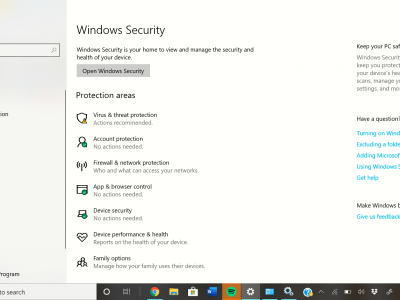
- Open Windows Security
- Click “Virus & threat protection”
- Click “Scan options”
- Select “Full scan”
- Click “Scan now”
Consider running Malwarebytes for a second opinion scan.
Reset BIOS/UEFI Settings
Incorrect BIOS settings can affect USB device performance.
Reset BIOS:
- Restart computer and enter BIOS (usually F2, F10, Delete, or F12)
- Find “Load Optimized Defaults” or similar option
- Confirm the reset
- Save and exit
Note: This resets all BIOS settings including boot order and overclocking configurations.
When to Replace Your Mouse
Sometimes the problem isn’t software—your mouse might simply be failing. Consider replacement if:
- Physical damage is visible on the cable, buttons, or sensor
- Lag persists across multiple computers
- Your mouse is several years old and showing other issues (double-clicking, tracking problems)
- All troubleshooting steps fail to resolve the lag
- Cleaning and battery replacement don’t help wireless mice
Before purchasing a replacement, read reviews focusing on reliability and check if the mouse has known lag issues on your operating system.
Frequently Asked Questions
Why does my mouse lag only in games but works fine on desktop?
Game-specific mouse lag usually occurs due to high frame rates overwhelming your system’s mouse polling, V-Sync settings causing input delay, or background processes competing for resources during gameplay. Try lowering your mouse polling rate in its software (from 1000Hz to 500Hz or 125Hz), disabling V-Sync in game settings, and closing background applications before gaming. Some games also have mouse smoothing or acceleration settings that create artificial lag.
Can WiFi interference really cause mouse lag?
Yes, absolutely. Wireless mice operating on 2.4GHz frequency compete with WiFi networks, Bluetooth devices, wireless keyboards, and other electronics. This interference causes packet loss between your mouse and receiver, resulting in stuttering and lag. Move your USB receiver closer to the mouse, switch it to a different USB port, or use a USB extension cable to reduce the distance. If possible, switch your WiFi router to 5GHz to eliminate frequency overlap.
Why does my mouse lag after Windows updates?
Windows updates can install incompatible drivers, change power management settings, or update graphics drivers that conflict with mouse performance. After major updates, check Device Manager for driver issues, verify power management settings haven’t changed, and ensure no new startup programs were added. Some users need to roll back graphics drivers to the previous version if the update introduced bugs.
Is mouse lag worse on high DPI settings?
Very high DPI settings (above 8000-10000) can sometimes cause micro-stuttering on certain systems because the sensor generates more data that needs processing. However, this isn’t universal—modern gaming mice handle high DPI well. If you’re experiencing lag at high DPI, try lowering it to 1600-3200 DPI range and adjusting in-game sensitivity instead. This often provides smoother performance.
Will reinstalling Windows fix mouse lag?
Reinstalling Windows can fix mouse lag caused by corrupted system files, registry errors, or problematic software installations. However, if the lag stems from hardware issues (faulty mouse, defective USB ports) or BIOS problems, a Windows reinstall won’t help. Try all other troubleshooting steps first, as reinstalling Windows is time-consuming and requires backing up your data. Consider a Windows reset as a less drastic alternative.
Does mouse lag indicate my computer is dying?
Not necessarily. While failing hardware can cause mouse lag, most cases result from software conflicts, driver issues, or incorrect settings that are easily fixable. However, if you notice other symptoms like random crashes, blue screens, or other peripherals failing, your hardware might need attention. Test your mouse on another computer—if it works perfectly there, your original computer has the problem.
Can too many USB devices cause mouse lag?
Yes. USB controllers have limited bandwidth and power delivery capacity. When you connect many USB devices simultaneously, bandwidth congestion can occur, causing input lag for all devices. Try disconnecting unnecessary USB peripherals to see if mouse performance improves. USB 3.0 ports can also create electromagnetic interference affecting wireless mice—try moving your wireless receiver to a USB 2.0 port instead.
Why does my Logitech/Razer software cause more lag?
Mouse companion software (Logitech Options, Razer Synapse, etc.) runs continuously in the background and can consume system resources or conflict with other software. Some versions have bugs that cause lag. Try completely closing or uninstalling the software temporarily to test if performance improves. If it does, check for software updates or use your mouse with basic drivers only. Many users find they don’t need the extra features enough to justify the potential lag.
Conclusion
Mouse lag is frustrating but almost always fixable through systematic troubleshooting. Start with the simplest solutions—restarting your computer, checking batteries, and updating drivers—before moving to advanced fixes like clean boots or BIOS resets. Most users find their solution within the first five troubleshooting steps.
Remember that different mouse brands and models have unique quirks. Logitech mice often benefit from receiver repositioning, while Razer mice frequently need polling rate adjustments. Pay attention to brand-specific solutions relevant to your hardware.
If you’ve exhausted all software fixes and your mouse still lags across multiple computers, the hardware itself is likely failing. Quality mice from reputable brands shouldn’t lag under normal use, so don’t hesitate to utilize warranty coverage or invest in a reliable replacement.
Regular maintenance prevents many lag issues. Keep your drivers updated, clean your mouse and sensor monthly, use appropriate surfaces, and manage your system resources. These simple habits ensure smooth, responsive cursor control for years to come.