You’re watching your favorite streamer, everything’s smooth — then the screen freezes and Twitch throws: “There was a network error. Please try again (Error #2000).” No explanation, no helpful button, just a dead stream. Twitch Error 2000 is a network connection failure between your browser and Twitch’s streaming servers. Importantly, it’s almost always a client-side issue — meaning something on your end is breaking the connection, whether that’s an ad blocker, a bad cache, your firewall, or a VPN. Here are 8 fixes that actually work in 2026, ordered from fastest to most thorough.
What Is Twitch Error 2000?
Twitch Error 2000 — officially displayed as “There was a network error. Please try again (Error #2000)” — is a browser-based streaming error that stops the video player from loading the stream. Notably, it only affects the video — your chat, followers list, and other Twitch features still work fine while the error is active. That’s the tell-tale sign that your internet connection itself is fine, but something is specifically blocking the stream from reaching your browser.
The most common causes behind this error in 2026 are:
- Ad blockers or browser extensions blocking Twitch’s player scripts
- Corrupted browser cache feeding Twitch bad data
- Firewall or antivirus treating Twitch stream connections as suspicious
- VPN conflicts where Twitch flags your VPN’s IP and blocks playback
- Twitch server outage (rare, but worth checking first)
- Outdated browser with compatibility issues in Twitch’s HTML5 player
Fix 1: Check Twitch Server Status
Before spending time troubleshooting your own setup, take 30 seconds to rule out a Twitch outage. If Twitch’s servers are having issues, no fix on your end will work — and the error will clear on its own once Twitch resolves it.
- Go to status.twitch.tv — Twitch’s official status page.
- Check if any systems are showing as Degraded Performance or Partial Outage.
- You can also check downdetector.com/status/twitch to see if other users are reporting the same issue right now.
If Twitch is down, all you can do is wait. If everything looks green, the issue is on your end — keep reading.
Fix 2: Hard Refresh the Page
A hard refresh forces your browser to reload the page completely from Twitch’s servers, bypassing anything stored in your local cache. This fixes a surprising number of Error 2000 cases that are caused by a temporary glitch or a stale cached resource.
- Windows (Chrome, Firefox, Edge): Hold Ctrl + Shift and press R, or hold Shift and click the Refresh button.
- Mac (Chrome, Firefox): Hold Command + Shift and press R.
- Mac (Safari): Hold Option + Command and press E to empty the cache, then press Command + R to reload.
If one hard refresh doesn’t work, try two or three — some users have found the stream loads on the second or third attempt.
Fix 3: Disable Your Ad Blocker and Browser Extensions
This is the number one cause of Twitch Error 2000 in 2026. Ad blockers — especially uBlock Origin, Ghostery, AdBlock Plus, and Kaspersky’s browser extension — frequently block the scripts and CDN connections that Twitch’s video player depends on to stream. When those connections are blocked, the player fails to load and throws Error 2000.
The fastest way to test this is to open Twitch in an Incognito or Private window — extensions are disabled by default in these modes. If Twitch loads fine in Incognito, an extension is definitely your culprit.
- Click the extensions icon (puzzle piece) in your browser toolbar.
- Disable your ad blocker first — click the toggle to turn it off for Twitch specifically, or disable it site-wide temporarily.
- Reload the Twitch stream.
- If it works, re-enable your ad blocker and whitelist Twitch so it’s excluded from blocking.
- If disabling the ad blocker alone didn’t fix it, disable all extensions one by one and test after each one to identify the exact culprit.
For Ghostery specifically: open the extension, click the shield icon, and enable “Enhanced Anti-tracking” — this often resolves the conflict with Twitch without requiring a full disable.
Fix 4: Clear Your Browser Cache and Cookies
A corrupted browser cache can cause Twitch to repeatedly load broken player data, resulting in Error 2000 every time you try to stream. Clearing the cache forces your browser to pull fresh data from Twitch’s servers from scratch.
Chrome:
- Press Ctrl + Shift + Delete (Windows) or Command + Shift + Delete (Mac).
- Set the time range to All time.
- Check Cached images and files and Cookies and other site data.
- Click Clear data and reload Twitch.
Firefox:
- Press Ctrl + Shift + Delete.
- Select Everything from the Time Range dropdown.
- Check Cache and Cookies, then click Clear Now.
Safari (Mac):
- Click Safari in the top menu bar and choose Settings.
- Go to the Privacy tab and click Manage Website Data.
- Search for twitch.tv and click Remove.
- Also go to Develop > Empty Caches (enable the Develop menu in Safari settings if it’s not visible).
Fix 5: Try a Different Browser or Use the Twitch App
If clearing the cache didn’t help, the issue may be specific to your current browser. Different browsers handle Twitch’s HTML5 player differently, and some versions have known compatibility issues. Switching browsers is a quick way to isolate the problem.
- If you’re on Chrome, try Firefox or Edge. If you’re on Safari, try Chrome.
- Open Twitch in the new browser and test the stream.
- If it works in a different browser but not your usual one, update your primary browser to the latest version — go to its settings and check for updates.
Alternatively, download the Twitch desktop app for Windows or Mac from twitch.tv/downloads. The app doesn’t rely on a browser, so it bypasses most browser-related causes of Error 2000 entirely. Many users find the app more reliable for consistent streaming compared to the browser version.
Fix 6: Disable Your VPN or Switch VPN Servers
Twitch actively blocks IP addresses associated with certain VPN providers, especially those with known abuse records. If you’re using a VPN and Twitch is showing Error 2000, there’s a good chance your current VPN server’s IP has been blocked. The stream can’t load because Twitch is rejecting the connection before it even starts.
- Disable your VPN entirely and try loading the Twitch stream.
- If Twitch works without the VPN, the VPN’s IP was being blocked.
- If you need to keep using a VPN, try switching to a different server location inside the VPN app and reload Twitch.
- Servers in your own country or a nearby country typically work more reliably with Twitch than servers in distant or privacy-heavy regions.
Fix 7: Disable Your Firewall or Antivirus Temporarily
Firewalls and real-time antivirus protection can sometimes block Twitch’s streaming CDN connections, treating them as suspicious traffic. This is especially common with third-party antivirus suites like Bitdefender, Kaspersky, or Norton, which have aggressive real-time web filters. Disabling them temporarily lets you test whether they’re the cause — remember to re-enable them immediately after testing.
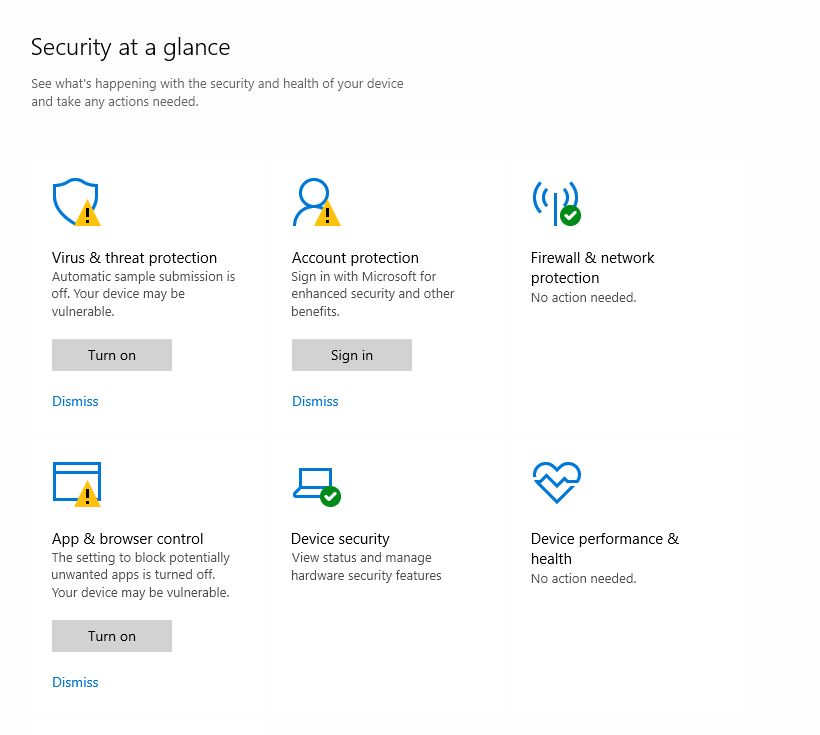
Windows Defender Firewall:
- Press Windows + S and search for Windows Security.
- Go to Firewall & Network Protection.
- Click the network marked (active) and toggle Microsoft Defender Firewall to Off.
- Reload Twitch and test the stream.
- Turn the firewall back on after testing.
If Twitch works with the firewall off, add a Twitch exception rather than leaving the firewall disabled permanently. In Windows Defender Firewall, go to Allow an app through firewall and add your browser to the allowed list.
Fix 8: Flush DNS and Change Your DNS Server
An outdated or corrupted DNS cache on your computer can cause failed connections to Twitch’s streaming servers, resulting in Error 2000. Flushing your DNS clears that cache and forces a fresh lookup. Switching to a faster public DNS like Google or Cloudflare can also improve connection reliability to Twitch overall.
Flush DNS on Windows:
- Press Windows + R, type cmd, and press Ctrl + Shift + Enter to open Command Prompt as administrator.
- Type the following and press Enter:
ipconfig /flushdns- You should see: Successfully flushed the DNS Resolver Cache.
- Close Command Prompt and reload Twitch.
Flush DNS on Mac:
- Open Terminal (search for it in Spotlight).
- Type the following and press Enter:
sudo dscacheutil -flushcache; sudo killall -HUP mDNSResponder- Enter your Mac password when prompted and reload Twitch.
Change to Google or Cloudflare DNS:
On Windows, go to Settings > Network & Internet > Change adapter options. Right-click your network connection, click Properties, select Internet Protocol Version 4 (TCP/IPv4), and click Properties. Set the Preferred DNS server to 8.8.8.8 (Google) or 1.1.1.1 (Cloudflare) and the Alternate DNS to 8.8.4.4 or 1.0.0.1 respectively. Click OK and reload Twitch.
Still Getting Error 2000? Try These Final Steps
If you’ve tried every fix above and Twitch still shows Error 2000, here are a few last things worth trying. First, restart your router by unplugging it for 30 seconds and plugging it back in — this clears the router’s DNS cache and gets you a fresh IP address from your ISP. Second, try loading Twitch on a completely different device like your phone on mobile data — if it works there, the problem is specific to your computer’s network configuration, not Twitch. Third, if you’re on a wired connection, try switching to Wi-Fi, or vice versa. Finally, if nothing works after waiting 15–20 minutes, reach out to Twitch Support at twitch.tv/help — in rare cases, your IP address may have been accidentally flagged by Twitch’s systems and needs to be manually cleared on their end.
Frequently Asked Questions
What does Twitch Error 2000 mean?
Twitch Error 2000 is a network connection error that prevents the stream video player from loading. The full message reads: “There was a network error. Please try again (Error #2000).” It signals that your browser failed to establish or maintain a connection to Twitch’s streaming servers — but since only the video is affected while chat and other features still work, the issue is usually with your browser, extensions, firewall, or VPN rather than your internet connection itself.
Why does Twitch Error 2000 only happen in my browser and not the app?
The Twitch desktop app and the browser version use different methods to deliver streams. Browser-based Twitch can be affected by extensions, browser cache, cached cookies, and browser-level firewall rules — none of which affect the desktop app. If Twitch works fine in the app but fails in your browser, a browser extension (especially an ad blocker), corrupted cache, or an outdated browser version is the most likely cause.
Can an ad blocker really cause Twitch Error 2000?
Yes — this is actually the most common cause of Error 2000 in 2026. Ad blockers like uBlock Origin, Ghostery, and AdBlock Plus often block the CDN and script connections that Twitch’s HTML5 video player requires to initialize the stream. When those connections are blocked, the player fails with Error 2000. The quickest test is to open Twitch in an Incognito or Private window, where extensions are disabled by default. If Twitch loads there, an extension is definitely the problem.
Does Twitch Error 2000 mean my account is banned?
No. Twitch Error 2000 is a network error, not an account error. If your account were suspended or banned, you would receive a specific message about the suspension rather than a generic network error. Chat still functioning while Error 2000 is active further confirms it’s a streaming connection issue, not an account problem. If you’re concerned about your account status, you can check it directly at twitch.tv/settings/security.
Why does Twitch Error 2000 appear on some streams but not others?
This usually happens when Twitch routes different streams through different CDN servers, and one of those servers is being blocked by your firewall, VPN, or ISP. It can also happen if a specific stream has unusually high traffic and Twitch switches to a backup delivery path that your browser struggles to connect to. If this pattern repeats consistently on the same channel, try flushing your DNS and switching to a public DNS server like Cloudflare (1.1.1.1) or Google (8.8.8.8).
How do I fix Twitch Error 2000 on mobile?
On mobile, Twitch Error 2000 is less common but does occur. Start by closing the Twitch app fully and reopening it. If that doesn’t help, try switching between Wi-Fi and mobile data — if one works and the other doesn’t, the issue is network-specific. Clearing the Twitch app’s cache through your phone’s App Settings often resolves it as well. On Android, go to Settings > Apps > Twitch > Storage > Clear Cache. On iPhone, the easiest method is to offload and reinstall the Twitch app, which clears all cached data.