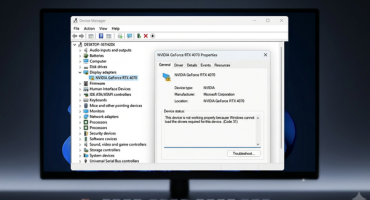
If your Bluetooth icon keeps vanishing, your headphones cut out mid-song, or Device Manager shows a yellow warning triangle next to your adapter, you’re dealing with an Intel Wireless Bluetooth driver error. It’s one of the most common complaints among Windows laptop owners, and it usually shows up right after a Windows update or a driver refresh gone wrong. The good news is that in almost every case, it’s fixable without buying new hardware.
This guide walks through why the error happens, the fastest ways to solve it, and what to do if your Bluetooth device keeps disconnecting and reconnecting on its own — a specific glitch that’s been affecting a lot of Intel-based PCs lately.
What Causes the Intel Wireless Bluetooth Driver Error?
Before jumping into fixes, it helps to know what’s actually going wrong under the hood. There are usually four culprits:
- A corrupted or outdated driver file — this happens most often after a Windows feature update replaces your existing driver with a generic, incompatible one.
- Wi-Fi and Bluetooth fighting over the same wireless channel. Intel has publicly acknowledged this issue on newer adapters, since both radios often use the 2.4 GHz band at the same time, which can cause stuttering audio and dropped connections.
- A broken installation, where the Bluetooth driver got interrupted mid-install or was installed in the wrong order relative to the Wi-Fi driver.
- Windows Update pushing its own driver version over the one Intel or your laptop manufacturer intended, which can create version conflicts. This ties into a broader pattern of Windows Update installation problems that can affect more than just wireless drivers.
Knowing which one applies to you isn’t strictly necessary — the fixes below are ordered from quickest to most thorough, so you can just work your way down the list.
How to Fix the Intel Wireless Bluetooth Driver Error
1. Restart Bluetooth Support Service
This sounds too simple to work, but it resolves the issue more often than people expect.
- Press Win + R, type
services.msc, and hit Enter. - Find Bluetooth Support Service in the list.
- Right-click it and select Restart.
- Try reconnecting your device.
2. Update the Driver Through Device Manager
- Right-click the Start button and choose Device Manager.
- Expand Bluetooth, right-click your Intel adapter, and select Update driver.
- Choose Search automatically for drivers and let Windows do its thing.
- Restart your PC once it finishes.
If Windows says you already have the best driver installed but the problem persists, that “best” driver is often the buggy one — skip to the next step.
3. Download the Driver Directly From Intel
Windows Update doesn’t always grab the newest, most stable driver version. Getting it straight from the source usually works better:
- Go to the official Intel Download Center and search for Intel Wireless Bluetooth.
- Match the driver to your exact adapter model (check it under Device Manager > Bluetooth if you’re not sure).
- Download and run the installer as administrator.
- Install the wireless (Wi-Fi) driver first, then the Bluetooth driver — installing them in the wrong order is a common reason Bluetooth stays disabled or hidden.
- Restart your computer.
4. Do a Clean Uninstall and Reinstall
If updating doesn’t help, a leftover corrupted installation is likely to blame.
- Open Device Manager, right-click the Intel Bluetooth entry, and select Uninstall device.
- Check the box for Delete the driver software for this device before confirming.
- Restart your PC — Windows will often reinstall a basic driver automatically.
- Once it boots back up, install the correct driver package downloaded from Intel in step 3.
5. Fix the Disappearing/Reappearing Bluetooth Icon (Windows 11 24H2)
A number of users on Windows 11 24H2 have reported their Bluetooth adapter randomly disappearing from Quick Settings, along with the connect/disconnect chime playing repeatedly. This is typically tied to power management settings interfering with the adapter:
- Open Device Manager > expand Bluetooth.
- Right-click your Intel Bluetooth adapter and go to Properties > Power Management.
- Uncheck Allow the computer to turn off this device to save power.
- Apply the change and restart.
6. Install Intel’s Latest Wi-Fi and Bluetooth Coexistence Fix
Intel has released updated wireless drivers specifically to fix Bluetooth audio stuttering and connection instability caused by Wi-Fi and Bluetooth competing for the same channel. If your issue mainly shows up while streaming audio over Bluetooth while connected to Wi-Fi, make sure you’re on the latest driver package from Intel’s Download Center rather than whatever Windows Update installed automatically — manufacturers don’t always push the newest version right away.
When to Consider a Hardware Issue
If you’ve tried everything above and Bluetooth still won’t show up at all (not even as a disabled device in Device Manager), it’s worth considering a hardware problem — a loose internal connection or a failing adapter. This is less common but does happen, especially on older laptops. At that point, contacting your laptop manufacturer’s support team is the more reliable path forward.
It’s also worth ruling out related connectivity problems while you’re at it — if USB ports have stopped working around the same time, or your Ethernet connection keeps dropping too, the root cause might be a broader driver or power management issue rather than something isolated to Bluetooth.
Frequently Asked Questions
Why does my Intel Bluetooth keep disconnecting on Windows 11?
This is most often caused by power management settings turning the adapter off to save battery, or by a Wi-Fi/Bluetooth channel conflict on newer Intel adapters. Disabling the power-saving option for the adapter and installing Intel’s latest coexistence driver update usually resolves it.
Should I install the Bluetooth driver from Intel or wait for Windows Update?
Windows Update is convenient but doesn’t always deliver the newest driver version. If you’re actively troubleshooting an error, downloading the driver directly from Intel’s Download Center for your exact adapter model is usually the safer and faster option.
Does reinstalling the wireless driver fix Bluetooth too?
Not always. Intel’s Bluetooth and Wi-Fi drivers are separate components, so you typically need to install both, and in the right order (wireless first, then Bluetooth), for the adapter to work correctly.
Is this Intel Bluetooth driver error related to a hardware failure?
Rarely. In the vast majority of cases, it’s a driver or software conflict rather than a failed adapter. Hardware failure is only likely if Bluetooth doesn’t appear anywhere in Device Manager even after a clean driver reinstall.