Whether you’re stuck behind a school filter, a strict office firewall, or a government block, knowing how to unblock websites is one of the most useful skills you can have in 2026. The methods that work vary depending on what device you’re on and how the block is set up — a school Chromebook with MDM software is a very different challenge from an iPhone with Screen Time restrictions. This guide breaks everything down by device and situation, from the quickest no-install tricks to full VPN setups, so you can find what works for your exact situation right now.
Why Are Websites Blocked in the First Place?
Understanding what’s doing the blocking helps you pick the right method to get around it. Most website blocks fall into one of these categories:
- Network-level blocks: Set by a school, office, or ISP through DNS filtering or firewalls. They block websites for every device connected to that Wi-Fi network.
- Device-level blocks: Installed directly on the device through MDM (Mobile Device Management) software, parental controls, or Screen Time. These follow the device regardless of which network it’s on.
- Browser-level blocks: Set through Chrome policies, browser extensions, or site permission settings. These only affect that specific browser.
- Geographic blocks: Set by content providers like Netflix or YouTube, which restrict access based on your IP address location.
The method you need depends on which type of block you’re dealing with. Let’s go device by device.
How to Unblock Websites on a School Computer (Chromebook & Windows)
School computers are the trickiest case because they often combine network-level blocks with device-level restrictions, and you usually don’t have administrator rights. Here are the methods that work, ranked from easiest to most involved.
Method 1: Use Google Translate as a Proxy
This is one of the most reliable no-install tricks that still works in 2026 on most school Chromebooks. Google Translate fetches the blocked page on its own servers and displays it to you — effectively acting as a middleman the school filter never anticipated blocking.
- Go to translate.google.com.
- Click Websites at the top of the page.
- In the left field, paste the URL of the blocked website.
- Set both language fields to the same language (e.g., English to English) so nothing actually gets translated.
- Click the blue arrow to open the site.
This works because Google’s domain is almost never blocked on school networks. If it stops working, it means the school’s filter has specifically blocked Google Translate’s website proxy function — move to the next method.
Method 2: Use the IP Address Instead of the Domain Name
Most school filters block websites by their domain name (like youtube.com), not by their underlying IP address. If you access a site directly through its IP, the filter often doesn’t recognize it.
- On a Chromebook, press Ctrl + Alt + T to open the Crosh terminal.
- Type
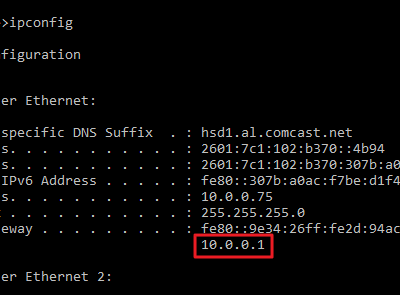
ping youtube.com(replace with the site you want) and press Enter. - Note the IP address shown in parentheses — for example,
172.217.14.206. - Type that IP address directly into your browser’s address bar and press Enter.
This method is hit or miss — it works when the filter targets domain names only, but won’t help if the school uses IP-based blocking as well. It also won’t work reliably for sites hosted across multiple IP addresses like Google or YouTube.
Method 3: Use a Web Proxy Extension
If you can access the Chrome Web Store, installing a proxy extension is one of the fastest solutions. Extensions like CroxyProxy or Browsec route your traffic through their own servers, bypassing the school’s filter without requiring any software installation.
- Open the Chrome Web Store and search for CroxyProxy or Browsec VPN.
- Click Add to Chrome to install the extension.
- Click the extension icon in the toolbar to activate it.
- Navigate to the blocked website — it should now load through the proxy.
Note: Some schools block the Chrome Web Store itself or actively monitor and remove unauthorized extensions on managed Chromebooks. If that’s the case, try the next method.
Method 4: Use Your Phone as a Mobile Hotspot
School content filters only apply to their own Wi-Fi network. If you connect your computer to your phone’s mobile data hotspot instead, you bypass the school’s network entirely — and every website becomes accessible again. The downside is you’ll be using your mobile data plan.
- On iPhone: Go to Settings > Cellular > Personal Hotspot and toggle Allow Others to Join on.
- On Android: Go to Settings > Network > Hotspot & Tethering > Wi-Fi Hotspot and turn it on.
- On your school computer, go to Wi-Fi settings and connect to your phone’s hotspot.
- Browse freely — the school’s filter has no reach over your mobile data connection.
Method 5: Use a VPN (If Allowed)
A VPN is the most powerful and reliable method for unblocking websites, but it comes with a caveat on school computers: you typically need admin rights to install software, and many schools actively block known VPN services at the network level. That said, if you’re on a personal laptop connected to the school’s Wi-Fi, or if your school’s IT team hasn’t blocked VPN traffic, a VPN will work perfectly.
Reliable free-to-try VPNs that work well in 2026 include ProtonVPN (truly unlimited free plan), Windscribe (10GB/month free), and TunnelBear. For a paid option, NordVPN and ExpressVPN consistently bypass even aggressive network blocks.
- Download and install your chosen VPN on the device.
- Open the VPN app and connect to a server (your own country usually works best for speed).
- Open your browser and navigate to the blocked website — it should load normally.
How to Unblock Websites on iPhone in 2026
On iPhone, the type of block determines your approach. If your phone is personal and the block comes from the network (school Wi-Fi), switching to mobile data or using a VPN is the fastest fix. If your iPhone has Screen Time restrictions set by a parent or school, that’s a device-level block that requires a different approach.

Method 1: Switch to Mobile Data
The simplest fix. If the block is at the network level (school or work Wi-Fi), simply turn off Wi-Fi and use your cellular data instead. The filter only affects the Wi-Fi network, not your carrier’s data connection.
- Swipe down from the top-right corner to open Control Center.
- Tap the Wi-Fi button to turn it off.
- Make sure the cellular data icon is active.
- Open Safari or Chrome and try the website again.
Method 2: Use a VPN App
A VPN app on iPhone encrypts your traffic and routes it through a different server, bypassing both network blocks and geographic restrictions. Setup takes about 2 minutes.
- Open the App Store and download a VPN app — ProtonVPN, Windscribe, or NordVPN are all reliable choices with iPhone apps.
- Open the app, create a free account if needed, and tap Connect.
- iOS will ask you to allow the VPN to add a configuration — tap Allow.
- Once connected, open Safari or Chrome and browse normally.
Method 3: Change DNS Settings on iPhone
Changing your DNS server bypasses ISP-level DNS filtering, which is how many network blocks work. Google DNS and Cloudflare DNS don’t have the same site restrictions as your school or ISP’s DNS servers.
- Go to Settings > Wi-Fi and tap the (i) icon next to your connected network.
- Scroll down to Configure DNS and tap it.
- Switch from Automatic to Manual.
- Delete the existing DNS server and tap Add Server.
- Enter 1.1.1.1 (Cloudflare) or 8.8.8.8 (Google) and tap Save.
Method 4: Disable Screen Time Restrictions (If You Know the Passcode)
If websites are blocked through Screen Time on your own iPhone, and you set it up yourself or know the passcode, you can remove the restriction easily.
- Go to Settings > Screen Time > Content & Privacy Restrictions.
- Enter your Screen Time passcode when prompted.
- Tap Content Restrictions > Web Content.
- Select Unrestricted Access.
How to Unblock Websites on Android in 2026
Android gives you more flexibility than iPhone when it comes to unblocking websites, largely because the operating system is more open and allows more customization at the network level.
Method 1: Use a VPN App
Same as on iPhone — a VPN is the most reliable method. Download ProtonVPN, NordVPN, or Windscribe from the Google Play Store, connect to a server, and browse freely.
Method 2: Change DNS Settings
Android 9 and later supports Private DNS — a system-wide DNS setting that applies to all apps, not just your browser.
- Go to Settings > Network & Internet > Advanced > Private DNS (exact path varies by Android version and manufacturer).
- Select Private DNS provider hostname.
- Type 1dot1dot1dot1.cloudflare-dns.com (Cloudflare) or dns.google (Google).
- Tap Save. All DNS queries now go through the new server, bypassing ISP and network-level filters.
Method 3: Use a Different Browser
Some network filters target specific browsers or block certain browser user-agent strings. If Chrome is blocked on Android, try Firefox, which also has the Ublock Origin extension and a built-in private mode that behaves differently at the network level. The Tor Browser for Android (available on Google Play) routes your traffic through multiple encrypted relay nodes, bypassing almost all network-level blocks — though it’s significantly slower than a VPN.
How to Unblock Websites in Chrome (Desktop) in 2026
If the block is browser-level — meaning it’s inside Chrome’s settings or an extension is doing the blocking — here’s how to fix it directly from within Chrome on a PC or Mac.
Method 1: Check Chrome Site Permissions
- Open Chrome and go to the website that’s blocked.
- Click the lock icon (or the info icon) in the address bar.
- Click Site settings.
- Review the permissions and make sure nothing is set to Block that shouldn’t be.
- Go to chrome://settings/content to review all content settings globally.
Method 2: Use a Proxy Extension
Install a proxy extension from the Chrome Web Store — CroxyProxy, Browsec, or Hoxx VPN Proxy are all popular options. Once installed, activate the extension and revisit the blocked site. Proxy extensions work at the browser level and don’t require any system-level changes.
Method 3: Access the Cached Version of the Page
If the original site is blocked but Google has a cached copy, you can often access the content through Google’s cache. In the Chrome address bar, type:
cache:example.comReplace example.com with the blocked website. If Google has a cached version, it will display the last saved copy of the page. Note that this only shows static content — dynamic features like login, video, or live updates won’t work in the cached version.
Method 4: Change DNS in Chrome
- Open Chrome and go to chrome://settings/security.
- Scroll down to Use secure DNS and toggle it on.
- Select With: Cloudflare (1.1.1.1) or Google (8.8.8.8) from the dropdown.
This changes Chrome’s DNS resolver independently from your system DNS, which can bypass filters that operate at the OS or router level.
How to Unblock Websites on a PC (Windows) in 2026
Method 1: Change Your DNS Server
- Press Windows + R, type ncpa.cpl, and press Enter.
- Right-click your active network connection and select Properties.
- Select Internet Protocol Version 4 (TCP/IPv4) and click Properties.
- Select Use the following DNS server addresses.
- Set Preferred DNS to 1.1.1.1 (Cloudflare) or 8.8.8.8 (Google).
- Set Alternate DNS to 1.0.0.1 or 8.8.4.4.
- Click OK, then flush DNS: open Command Prompt as admin and run
ipconfig /flushdns.
Method 2: Install and Use a VPN
Download and install ProtonVPN, NordVPN, or Windscribe on your Windows PC. Open the app, connect to a server, and the block is bypassed immediately. A VPN works at the system level, so it covers every browser and app on your PC simultaneously.
Method 3: Use the Tor Browser
The Tor Browser routes your traffic through three layers of encrypted relay nodes, making it nearly impossible for any network filter to see or block your destination. Download it from torproject.org, install it, and it works immediately with no configuration needed. The major trade-off is speed — Tor is significantly slower than a VPN and is not suitable for streaming or downloading large files.
Quick Method Comparison
- VPN: Best all-around method. Works on every device and every block type. Requires installation. Free and paid options available.
- Google Translate trick: Best for school computers with no install rights. Quick and free, but unreliable on sites with lots of dynamic content.
- Change DNS: Best for bypassing ISP or network-level DNS blocks. Free, no install needed on PC. Doesn’t help with device-level blocks.
- Proxy extension: Best for browser-level bypassing with no system access. Free, quick to install. Slower than VPN.
- Mobile hotspot: Best when on a school or work network. No software needed. Uses mobile data.
- Tor Browser: Best for maximum anonymity. Free. Significantly slower than other methods.
Important Note on School & Work Policies
While every method in this guide is technically legal, bypassing restrictions on a school-owned device or a managed work device may violate your school’s Acceptable Use Policy or your employer’s IT policies. On school-owned Chromebooks, MDM software like GoGuardian can log your activity regardless of which browser or proxy you use. Always consider the rules that apply to you before bypassing any restrictions — and when in doubt, use a personal device on mobile data rather than a managed device.
Frequently Asked Questions
How do I unblock websites on a school Chromebook without a VPN?
The most reliable no-VPN method on a school Chromebook is using Google Translate as a proxy. Go to translate.google.com, click Websites, paste the blocked URL, and set both language fields to English before clicking the arrow. Other options include using the IP address of the blocked site directly in the address bar, installing a proxy Chrome extension from the Web Store, or connecting to your phone’s mobile hotspot to bypass the school’s network filter entirely.
What is the fastest way to unblock websites on iPhone?
The fastest method is to turn off Wi-Fi and use your mobile data instead, which bypasses any network-level filters immediately. If the block is installed on the device itself through Screen Time, you will need the Screen Time passcode to remove the content restriction under Settings > Screen Time > Content & Privacy Restrictions > Web Content. If you don’t have the passcode, installing a VPN app from the App Store is the next best option.
Does changing DNS settings actually unblock websites?
Yes, for network-level DNS blocks. Many schools and ISPs block websites by poisoning their own DNS servers — so when your device asks where a site lives, the DNS server lies and sends you nowhere. Switching to a clean public DNS like Cloudflare (1.1.1.1) or Google (8.8.8.8) bypasses this by asking a DNS server that isn’t controlled by the network administrator. However, this only works for DNS-based blocks. If the block is enforced through deep packet inspection, IP blocking, or device-level MDM, changing DNS alone won’t help.
Can schools see if I’m using a VPN?
School IT teams can see that encrypted VPN traffic is leaving the network, even if they can’t read what’s inside it. Some schools actively block known VPN protocols and IP ranges to prevent this. On school-owned devices running MDM software like GoGuardian, your activity is logged at the device level regardless of what network or browser you’re using. For this reason, using a VPN on a personal device connected to mobile data is always safer than using it on a school-managed device.
Is it illegal to unblock websites at school?
Using VPNs, proxies, and other methods to access blocked websites is legal in most countries, including the US and UK. However, doing so on a school-owned device or managed network may violate your school’s Acceptable Use Policy, which can carry consequences like disciplinary action or loss of device privileges — even if it isn’t illegal. On personal devices using your own mobile data, there is generally no legal issue with bypassing network restrictions.
What is the best free VPN to unblock websites in 2026?
The best free VPN for unblocking websites in 2026 is ProtonVPN, which offers a truly unlimited free plan with no data caps — the only major free VPN that does so. The trade-off is that free users are limited to servers in three countries and slower speeds during peak hours. Windscribe is another strong option with 10GB of free data per month and servers in more locations. For occasional use on a school or work network, either of these will do the job reliably without requiring a paid subscription.