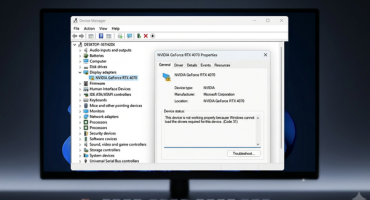
If Device Manager shows “This device is disabled (Code 22)” next to your graphics card, don’t worry — this is one of the more straightforward Device Manager errors to fix. The graphics driver error code 22 simply means Windows sees your GPU but the device itself has been switched off, either by you, by a system setting, or by Windows itself.
Quick Answer
Graphics driver error code 22 means your GPU is disabled in Device Manager rather than broken. Right-click the device and choose Enable device first — that alone fixes most cases. If it doesn’t stick, update or roll back the driver, check power settings, and reset your BIOS/CMOS if the problem keeps coming back.
What Causes Code 22 on a Graphics Card?
Code 22 is different from Code 31 or Code 43 in one key way: the driver itself usually isn’t the problem, the device is just turned off. Common causes include:
- The device was manually disabled in Device Manager, by you or another user
- A driver conflict after installing or updating GPU drivers
- Windows disabling the device due to insufficient system resources
- Power-saving or laptop hybrid graphics switching (Optimus/MUX) turning off the GPU
- Outdated BIOS or firmware settings
- Corrupted Windows system files
Fix 1: Enable the Device
Start here, since it resolves Code 22 for most people:
- Press Win + X and select Device Manager
- Expand Display adapters
- Right-click your graphics card
- If you see Enable device, click it
- Restart your PC
If “Enable device” isn’t showing, the device is already technically enabled and something else is causing Windows to report it as disabled — move on to the next fixes.
Fix 2: Restart Your PC
Windows sometimes disables hardware temporarily after an update, then re-enables it once the system fully restarts (not just sleeps). A clean reboot followed by installing any pending updates under Settings > Windows Update clears this in a lot of cases.
Fix 3: Update or Roll Back the Driver
If Code 22 started after a driver change, the fix depends on when it began:
- Open Device Manager, right-click your GPU, and select Properties
- Go to the Driver tab
- If the error started after a recent driver update, click Roll Back Driver
- If not, click Update Driver > Search automatically
- Restart your PC
Fix 4: Do a Clean Reinstall with DDU
When enabling the device and updating the driver both fail to hold, a full clean wipe usually finishes the job:
- Boot into Safe Mode
- Run Display Driver Uninstaller (DDU), select your GPU brand, and choose Clean and restart
- After reboot, install the latest driver directly from NVIDIA, AMD, or Intel
- Restart again and check Device Manager
Fix 5: Check Power and Graphics Switching Settings
On laptops with both integrated and dedicated GPUs, hybrid graphics switching can disable the dedicated card to save battery. Check your GPU vendor’s control panel (NVIDIA Control Panel, AMD Software) for power-management settings, and make sure Windows isn’t set to aggressively limit performance under Settings > System > Power.
Fix 6: Reset CMOS or Update BIOS
If Windows is disabling the card due to resource conflicts, resetting the CMOS or updating your motherboard’s BIOS can resolve it. Check your motherboard manufacturer’s site for the latest BIOS version and instructions specific to your model before attempting a CMOS reset.
Fix 7: Try a Different PCIe Slot
If you’re on a desktop, moving the graphics card to a different PCIe slot rules out a faulty slot as the cause. This is a less common fix, but worth trying if nothing else has worked.
When It’s Actually Hardware
If enabling the device, updating drivers, and checking BIOS settings all fail, the card itself may be faulty. Testing it in another PC, or having it inspected by a repair shop, is the next step before replacing it.
Frequently Asked Questions
Is Code 22 serious?
Not usually. Code 22 means your GPU is disabled rather than damaged, and it’s one of the easier Device Manager errors to fix, typically resolved by re-enabling the device or updating its driver.
Why does my graphics card keep getting disabled?
This is often caused by a driver conflict, a laptop’s hybrid graphics switching feature, or Windows power-saving settings automatically turning the GPU off. Checking your power plan and GPU vendor software usually identifies the cause.
What’s the difference between Code 22 and Code 43?
Code 22 means the device is disabled and simply needs to be turned back on or have its driver fixed. Code 43 means Windows detected a reported problem and shut the device down as a safety measure, which usually points to a driver or power issue rather than a simple toggle.
Can a BIOS update really fix a graphics driver error?
Yes. Outdated BIOS settings can cause Windows to disable hardware due to resource conflicts. Updating the BIOS to the latest version from your motherboard manufacturer resolves this in some cases where driver fixes alone don’t work.