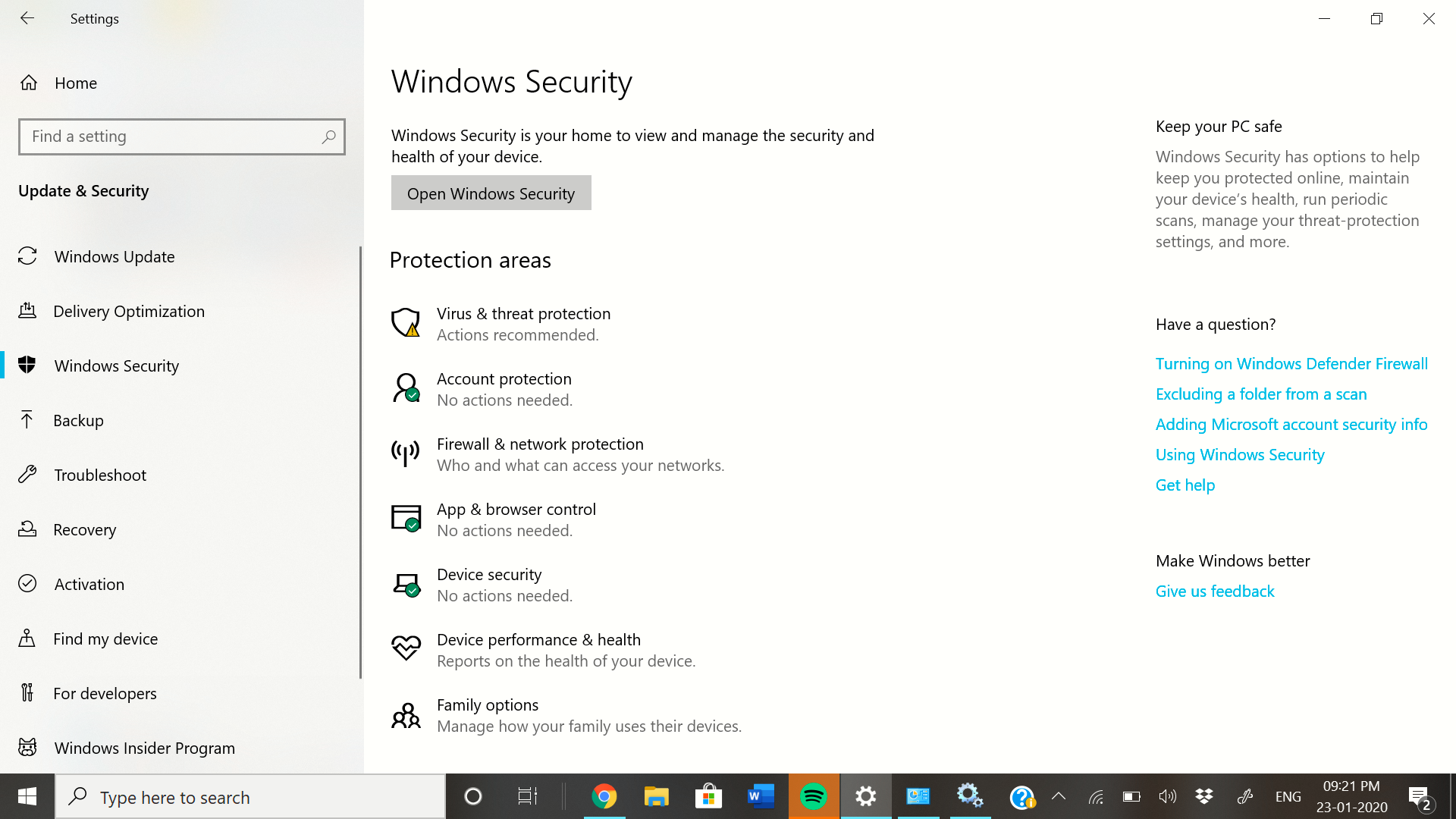
If Windows Security is not opening on your PC, you’re facing one of the most common issues affecting Windows 10 and Windows 11 users in 2026. This frustrating problem prevents you from accessing your antivirus settings, threat protection, and firewall controls. The good news? Windows Defender not opening doesn’t necessarily mean your system is unprotected, and in most cases, you can fix it without reinstalling Windows or losing your data.
When the Windows Security app refuses to launch, shows a blank screen, or gets stuck on the loading logo, it’s usually caused by corrupted app files, misconfigured services, conflicts with third-party antivirus software, or problems after recent Windows updates. This comprehensive guide walks you through proven solutions that have helped thousands of users restore their Windows Security functionality in 2026.
Why Windows Security Won’t Open on Windows 10/11
Before jumping into fixes, understanding why Windows Security stops working helps you choose the right solution. Here are the main culprits behind this issue:
Corrupted Windows Security App Files
The most common reason Windows Security won’t open is damaged or corrupted app package files. This typically happens after interrupted Windows updates, sudden system crashes, power outages during updates, or upgrading from Windows 10 to Windows 11. When these files get corrupted, the app may fail to launch entirely or open to a grey screen.
Disabled or Stuck Security Services
Windows Security depends on several background services to function properly. If the Security Center service isn’t running, Windows Defender Antivirus Service is disabled, or related services are stuck in a “starting” state, the app won’t open. These services can stop after system updates or when third-party security software interferes with them.
Third-Party Antivirus Conflicts
Installing or recently uninstalling third-party antivirus programs like Norton, McAfee, Avast, or AVG often causes Windows Security to malfunction. These programs automatically disable Windows Defender when installed, and sometimes leave behind registry entries, group policies, or service configurations that prevent Windows Security from reopening even after they’re removed.
Damaged System Files
Critical Windows system files that Windows Security relies on can become corrupted due to malware infections, disk errors, or failed system updates. When protected system components are damaged, Windows Security may crash immediately upon launch or refuse to start at all.
Recent Windows Updates
Ironically, Windows updates meant to improve security sometimes break the Windows Security app itself. Users frequently report Windows Security not opening immediately after installing major feature updates or monthly cumulative updates, particularly in early 2026 following the February security patches.
Quick Checks Before Trying Advanced Fixes
Before diving into technical solutions, try these simple checks that resolve the issue in many cases:
Restart Your Computer
A simple restart clears temporary system states and reinitializes services. Many users report Windows Security starts working again after a fresh boot, especially if the problem appeared suddenly.
Check for Windows Updates
Microsoft often releases patches specifically to fix Windows Security issues. Go to Settings > Windows Update and install any available updates. Restart your PC after updating and check if Windows Security opens.
Verify Windows Defender Is Actually Running
Even if the Windows Security app won’t open, Windows Defender protection might still be active in the background. Press Ctrl + Shift + Esc to open Task Manager, go to the Details tab, and look for “MsMpEng.exe” (Microsoft Malware Protection Engine). If it’s running, your system is still protected while you fix the app interface.
Proven Solutions to Fix Windows Security Not Opening
Solution 1: Repair or Reset Windows Security App
Windows 11 and Windows 10 include built-in repair tools for app issues. This should be your first troubleshooting step:
Steps to Repair Windows Security:
- Press Windows key + I to open Settings
- Navigate to Apps > Installed apps (Windows 11) or Apps > Apps & features (Windows 10)
- Search for “Windows Security” in the app list
- Click the three-dot menu next to Windows Security and select Advanced options
- Scroll down to the Reset section and click Repair
- Wait for the process to complete and restart your computer
If repairing doesn’t work, use the Reset option in the same location. Resetting clears all app data and returns Windows Security to factory defaults, which often resolves persistent issues.
Solution 2: Reset Windows Security via PowerShell
For stubborn cases where the Settings app method fails, PowerShell provides a more powerful reset option:
- Right-click the Start button and select Terminal (Admin) or Windows PowerShell (Admin)
- When prompted by User Account Control, click Yes
- Copy and paste this command:
Get-AppxPackage Microsoft.SecHealthUI -AllUsers | Reset-AppxPackage - Press Enter and wait for the command to complete
- Restart your computer
This PowerShell command forcefully re-registers the Windows Security app package, fixing registration errors that prevent the app from launching.
Solution 3: Restart Security Center Service
The Security Center service must be running for Windows Security to work. Here’s how to restart it:
- Press Windows key + R to open the Run dialog
- Type
services.mscand press Enter - Scroll down and locate “Security Center” in the services list
- Right-click Security Center and select Restart
- If the Restart option is greyed out, right-click and choose Start instead
- Double-click Security Center, set Startup type to Automatic, and click Apply
While you’re in the Services window, also check that “Windows Defender Antivirus Service” and “Windows Defender Firewall” are running and set to Automatic startup.
Solution 4: Run SFC and DISM Scans
System File Checker (SFC) and Deployment Image Servicing and Management (DISM) tools repair corrupted Windows system files that Windows Security depends on:
Run DISM First:
- Right-click Start and select Terminal (Admin) or Command Prompt (Admin)
- Type this command and press Enter:
DISM /Online /Cleanup-Image /RestoreHealth - Wait for the scan to complete (this may take 10-20 minutes)
Then Run SFC:
- In the same elevated command prompt, type:
sfc /scannow - Press Enter and wait for the scan to finish
- Restart your computer after both scans complete
DISM repairs the Windows image itself, while SFC uses that repaired image to fix individual system files. Always run DISM before SFC for best results.
Solution 5: Re-register Windows Security App
If Windows Security still won’t open after resetting, re-registering the app package often works:
- Open PowerShell as Administrator
- Copy and paste this command:
PowerShell -ExecutionPolicy Unrestricted -Command "& {$manifest = (Get-AppxPackage *Microsoft.Windows.SecHealthUI*).InstallLocation + '\AppxManifest.xml' ; Add-AppxPackage -DisableDevelopmentMode -Register $manifest}"
- Press Enter and wait for completion
- Restart your PC
This command locates the Windows Security installation folder and re-registers its manifest file with Windows, essentially reinstalling the app without downloading anything.
Solution 6: Uninstall Conflicting Antivirus Software
Third-party antivirus programs frequently prevent Windows Security from functioning. Even if you’ve already uninstalled them, remnants may remain:
- Press Windows key + I and go to Apps > Installed apps
- Look for any third-party antivirus software (Norton, McAfee, Avast, AVG, Kaspersky, etc.)
- Uninstall any security software you find
- Restart your computer
- Download and run the manufacturer’s official removal tool (most antivirus vendors provide these on their websites)
- Restart again after using the removal tool
Using the vendor’s removal tool is crucial because standard Windows uninstall often leaves behind registry entries and system hooks that continue blocking Windows Security.
Solution 7: Check Date and Time Settings
Incorrect system date and time can prevent Windows Security from connecting to Microsoft’s servers, causing it to malfunction:
- Open Settings and go to Time & language > Date & time
- Turn on “Set time automatically” and “Set time zone automatically”
- If automatic time is already enabled, toggle it off and on again
- Manually sync time by clicking “Sync now” under Additional settings
- Restart your computer
Solution 8: Perform a Clean Boot
A clean boot starts Windows with minimal drivers and startup programs, helping identify if third-party software is blocking Windows Security:
- Press Windows key + R and type
msconfig - Go to the Services tab and check “Hide all Microsoft services”
- Click “Disable all”
- Go to the Startup tab and click “Open Task Manager”
- Disable all startup items in Task Manager
- Close Task Manager, click OK in System Configuration, and restart
After clean booting, try opening Windows Security. If it works, you’ve confirmed that a third-party program is causing the conflict. Re-enable services and startup items one by one to identify the culprit.
What to Do If Nothing Works
If you’ve tried all solutions above and Windows Security still won’t open, consider these options:
Create a New User Account
Sometimes user profile corruption causes Windows Security issues. Creating a new Windows user account with administrator privileges and testing Windows Security there can confirm if this is the problem. If Windows Security works on the new account, you can transfer your files and use the new profile.
System Restore
If you have a system restore point from before Windows Security stopped working, restoring to that point can undo whatever changes caused the problem. Access System Restore by searching for “Create a restore point” in the Start menu, clicking System Restore, and following the wizard.
Use Windows Security Troubleshooter
Windows 10 includes a dedicated troubleshooter for Windows Security issues. Run it by opening Settings > Update & Security > Troubleshoot > Additional troubleshooters > Windows Security. (Note: This troubleshooter was removed in Windows 11 but may still be available through Microsoft’s official troubleshooting tools.)
Reset Windows 11/10 (Last Resort)
If absolutely nothing else works, resetting Windows while keeping your personal files can resolve deep system issues. Go to Settings > System > Recovery > Reset this PC. Choose “Keep my files” to preserve your documents, photos, and personal data while reinstalling Windows components.
Preventing Windows Security Issues in the Future
Once you’ve fixed Windows Security not opening, follow these best practices to prevent the issue from recurring:
- Keep Windows Updated: Install updates promptly, but wait a few days after major updates release to let Microsoft patch any initial bugs
- Avoid Multiple Security Programs: Never run two antivirus programs simultaneously, as they conflict with each other
- Use Proper Uninstall Tools: When removing security software, always use the vendor’s official removal tool
- Create Regular System Restore Points: Before major updates or software installations, create a manual restore point
- Run Maintenance Scans Monthly: Perform SFC and DISM scans monthly to catch and fix system file corruption early
Frequently Asked Questions
Will I be unprotected if Windows Security won’t open?
Not necessarily. The Windows Security app (the user interface) and Windows Defender protection services are separate. Even if the app won’t open, Windows Defender Antivirus often continues running in the background, providing real-time protection. Check Task Manager for “MsMpEng.exe” to confirm protection is active. However, you should still fix the app to regain access to important security settings and scans.
Can I use third-party antivirus instead of fixing Windows Security?
Yes, you can install reputable third-party antivirus software like Bitdefender, Kaspersky, or Norton as an alternative. However, fixing Windows Security is recommended because it’s free, lightweight, well-integrated with Windows 11/10, and performs excellently in independent antivirus tests. Third-party solutions may also slow down your system more than Windows Defender.
Why does Windows Security stop working after updates?
Windows updates sometimes conflict with existing Windows Security app files, especially if your system has remnants of previously uninstalled third-party antivirus software or custom registry modifications. Major feature updates (like Windows 11 22H2 or 23H2) are more likely to cause this issue than monthly cumulative updates. Microsoft typically releases fixes within a few weeks of discovering update-related bugs.
Is it safe to use PowerShell commands to fix Windows Security?
Yes, the PowerShell commands recommended in this guide are official Microsoft commands designed specifically for troubleshooting Windows apps. They simply reset or re-register the Windows Security app package without modifying critical system files or creating security risks. Always copy commands exactly as written and only run PowerShell as Administrator when necessary.
How long does it take to fix Windows Security not opening?
Simple solutions like repairing the app or restarting services take 5-10 minutes. Running SFC and DISM scans can take 20-45 minutes depending on your system speed. Most users resolve the issue within 30 minutes by trying the first few solutions in this guide. Only severe cases requiring system resets take several hours.
What’s the difference between Windows Security and Windows Defender?
Windows Security is the app interface that lets you access security settings, while Windows Defender (now called Microsoft Defender Antivirus) is the actual antivirus engine that protects your PC. They’re components of the same security system, but the app can stop working while Defender continues protecting you in the background. When people say “Windows Defender not opening,” they usually mean the Windows Security app won’t launch.
Conclusion
Windows Security not opening on Windows 10 or Windows 11 is frustrating but fixable in almost all cases. Start with simple solutions like repairing the app through Settings or restarting the Security Center service. If those don’t work, PowerShell resets and SFC/DISM scans resolve most stubborn cases. Remember that even when the Windows Security app won’t open, Windows Defender protection often continues running in the background, so your system isn’t completely vulnerable.
The key is methodically working through solutions from simplest to most complex, testing Windows Security after each step. For most users, one of the first five solutions in this guide will restore functionality. If you’re still having trouble after trying everything, consider consulting Microsoft Support or your IT department for personalized assistance.
By following this 2026 guide and implementing the preventive measures, you’ll not only fix Windows Security not opening but also reduce the chances of encountering this issue again in the future.