So you hid an app on your iPhone or iPad and now you need it back — but you’re not quite sure where it went or how to get it. You’re in the right place. Unhiding apps on iPhone looks different depending on how the app was hidden in the first place, and that’s exactly where most people get confused. This guide walks through every scenario: apps hidden via the App Library’s Hidden folder (iOS 18 and later), apps missing because of Screen Time restrictions, apps hidden from your App Store purchase history, and even Home Screen pages that vanished without warning. Let’s sort it all out.
Why Your App Might Be Hidden (and Why It Matters)
Before jumping into steps, it helps to understand that “hidden” doesn’t always mean the same thing on iPhone and iPad. There are actually four different situations that can make an app disappear:
First, you might have used the native app hiding feature introduced in iOS 18, which locks an app behind Face ID or Touch ID and moves it into a special Hidden folder inside the App Library. Second, Screen Time restrictions — either set by you or by a family member or employer — can block certain apps entirely. Third, you might have hidden an app from your App Store purchase list, which is a separate setting that prevents it from showing in your purchase history. And fourth, you might have accidentally hidden an entire Home Screen page, which makes all the apps on that page vanish from view without actually deleting them.
Knowing which one applies to you determines exactly which fix to use. Most of the time, for anyone on iOS 18 or iOS 26, the answer is the first one.
Method 1: Unhide Apps from the Hidden Folder in App Library (iOS 18 and iOS 26)
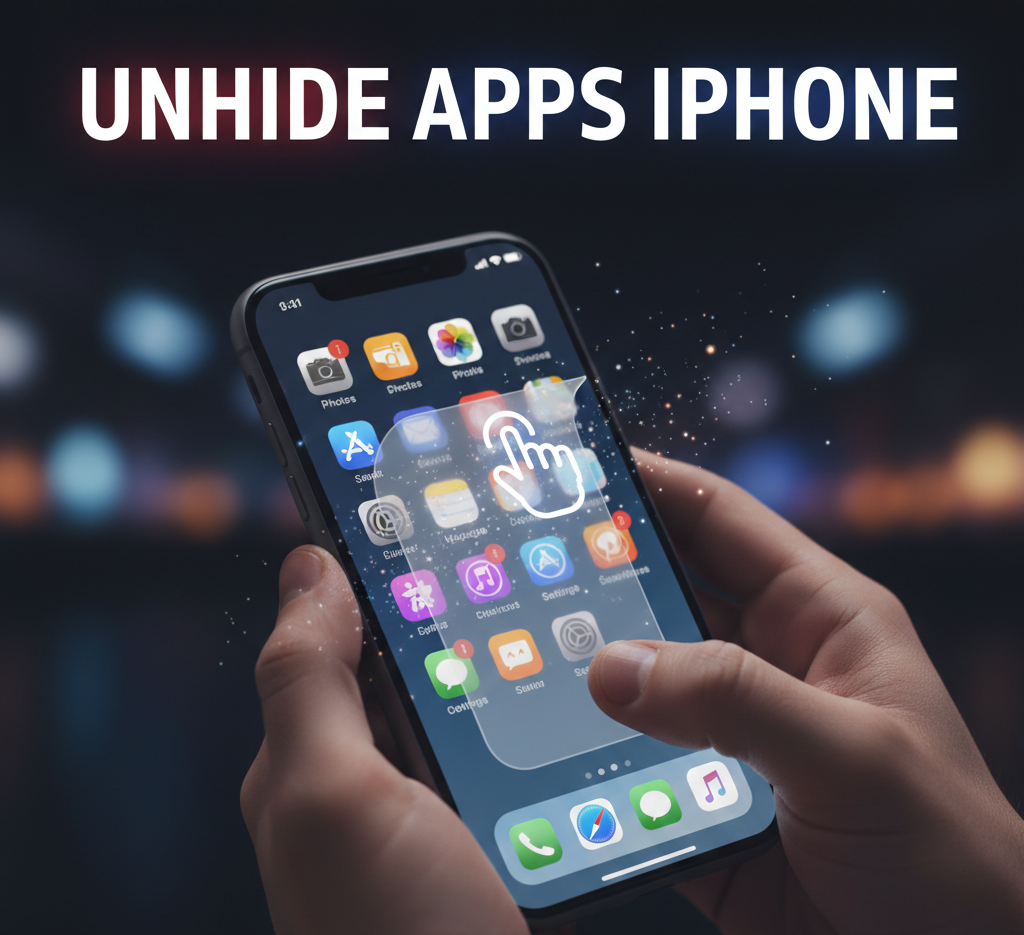
Starting with iOS 18, Apple gave iPhone and iPad users a proper native way to hide apps — and with it, a proper way to unhide them. When you hide an app using this method, it disappears from your Home Screen, search results, Siri suggestions, and even notifications. The app isn’t deleted — it’s sitting in a protected Hidden folder inside your App Library, locked with biometric authentication.
Here’s how to get it back:
- From your Home Screen, swipe left past all your pages until you reach the App Library.
- Scroll all the way down to the bottom of the App Library — you’ll see a folder simply labeled Hidden.
- Tap on it. Your iPhone or iPad will ask you to authenticate with Face ID, Touch ID, or your passcode.
- Once inside, find the app you want to unhide.
- Press and hold the app icon until the context menu appears.
- Tap “Don’t Require Face ID” (or Touch ID or Passcode, depending on your device).
- Authenticate again when prompted.
The app is now unhidden. One thing worth knowing: it won’t automatically pop back onto your Home Screen. It’ll be available in your App Library — scroll up to find it in its category, or use Search to locate it — and from there you can touch and hold it and tap Add to Home Screen to put it back where you want it.
Unhiding an App Without Removing the Lock
There’s actually a middle ground that most guides skip over. If you want to move an app out of the Hidden folder but still keep it locked (so it needs Face ID to open, just not hidden from view), you can do that too. Inside the Hidden folder, press and hold the app and look for “Add to Home Screen” or simply drag it out of the folder. This moves it back onto your Home Screen without removing the Face ID requirement — your app is visible again, but still locked for privacy.
Method 2: Unhide Apps Hidden by Screen Time
If you or someone else set up Screen Time restrictions on your device, certain apps may be completely blocked — not just hidden, but fully disabled. This is common on family-managed devices, but also happens when people set up their own focus limits and forget about them.
Here’s how to check and fix it:
- Open the Settings app.
- Tap Screen Time.
- Tap Content & Privacy Restrictions.
- Enter your Screen Time passcode if prompted.
- Tap Allowed Apps.
- Make sure the toggle is turned on for the apps you want to be visible (Safari, Mail, FaceTime, etc.).
If you’ve forgotten your Screen Time passcode, you’ll need to reset it through your Apple Account credentials. On iOS 26, go to Settings → Screen Time → scroll down and tap “Change Screen Time Passcode” → tap “Forgot Passcode?” and follow the prompts.
Keep in mind: Screen Time app restrictions are only for Apple’s built-in apps like Safari, Camera, or FaceTime. Third-party apps like Instagram or Spotify can’t be individually toggled here — but they can be blocked through App Limits or Communication Limits in Screen Time.
Method 3: Unhide Apps from App Store Purchase History
This is a completely different kind of “hidden” — and it’s one that confuses a lot of people. When you hide an app from your App Store purchase list, it means the app doesn’t show up in your Purchased history. The app itself isn’t hidden from your device — it’s just hidden from that list. But if you deleted the app and want to redownload it, you’ll need to unhide it from your purchase history first so you can find it.
- Open the App Store.
- Tap your profile photo or initials in the top-right corner.
- Tap your name or Apple Account at the top.
- Scroll down and tap Hidden Purchases.
- Find the app you want, then tap Unhide.
- Go back to the App Store, search for the app, and tap the cloud/download icon to reinstall it.
Note that unhiding a purchase doesn’t reinstall the app automatically — you still have to redownload it manually from the App Store.
Method 4: Restore a Hidden Home Screen Page
This one catches people off guard. If you long-pressed on your Home Screen and accidentally removed an entire page, all the apps on it disappear from your Home Screen — but they’re still installed. Nothing is actually gone.
To bring the page back:
- Press and hold an empty area of your Home Screen until the icons start jiggling.
- Tap the row of dots at the bottom of the screen (these represent your Home Screen pages).
- You’ll see all your pages with checkmarks below them. Pages without a checkmark are hidden.
- Tap the circle under any hidden page to put a checkmark on it and restore it.
- Tap Done in the top-right corner.
Your missing page — along with all the apps on it — will reappear instantly.
How to Unhide Apps on iPad
Good news: every method above works identically on iPad. The App Library is available on iPad starting from iPadOS 15, and the Hidden folder works the same way. The only visual difference is that the App Library lives in the dock on iPad rather than swiping all the way to the last page — tap the App Library icon at the far right of your dock to access it.
One important thing to know: hiding or unhiding an app is device-specific. If you hide an app on your iPhone, it doesn’t automatically hide on your iPad (and vice versa). These settings don’t sync across devices, so you’ll need to unhide separately on each one if needed.
What If the App Isn’t Hidden — It’s Just Gone?
If you’ve gone through all the methods above and the app is nowhere to be found, there’s a good chance it was deleted rather than hidden. In that case, all you need to do is go to the App Store, search for the app, and tap the cloud icon to redownload it for free. As long as you used the same Apple Account to originally download it, you won’t be charged again.
You can also search for the app using Spotlight (swipe down from the middle of any Home Screen and type the app name) — if it shows up there with a cloud icon, it means it’s been deleted and is available to redownload directly from the search result.
Quick Tips to Avoid This Confusion in the Future
A few habits that’ll save you a lot of trouble going forward: use the App Library’s search bar (swipe left to App Library, then tap the search field at the top) whenever you can’t find an app quickly — it shows every installed app on your device. If you use the native hide feature for privacy, keep a mental note or write down which apps you’ve hidden, since the Hidden folder is locked and easy to forget about. And if you share your device with kids or family, periodically review your Screen Time settings so restrictions don’t silently block apps you actually need.
Frequently Asked Questions
How do I unhide apps on iPhone with iOS 26?
On iOS 26, swipe left past all your Home Screen pages to reach the App Library, then scroll to the bottom and tap the Hidden folder. Authenticate with Face ID or Touch ID, press and hold the app you want to unhide, and tap “Don’t Require Face ID.” The app will move out of the Hidden folder and back into the App Library, where you can add it to your Home Screen.
Why is my app hidden and how did it get there?
There are a few possible reasons: you (or someone else) manually hid the app using the native iOS 18 hide feature, Screen Time restrictions are blocking the app, you accidentally hid a Home Screen page, or the app was hidden from your App Store purchase history. Each situation has a different fix — the method that works for you depends on which of these applies.
After unhiding an app, why doesn’t it appear on my Home Screen?
When you unhide an app from the Hidden folder in App Library, it returns to the App Library but doesn’t automatically get placed back on a Home Screen page. You need to manually add it: find the app in your App Library, press and hold its icon, and tap “Add to Home Screen.”
How do I unhide apps that are blocked by Screen Time?
Go to Settings → Screen Time → Content & Privacy Restrictions → Allowed Apps, and make sure the apps you want are toggled on. You’ll need the Screen Time passcode to make changes. If you’ve forgotten it, you can reset it through your Apple Account credentials by tapping “Forgot Passcode?” in the Screen Time settings.
Does hiding or unhiding apps on iPhone also affect my iPad?
No. App hiding is device-specific and does not sync between your iPhone and iPad, even if both are signed into the same Apple Account. If you want to unhide an app on both devices, you’ll need to do it separately on each one.
What’s the difference between hiding an app and deleting it?
A hidden app is still installed on your device — it’s just moved to the Hidden folder in App Library, out of sight on your Home Screen and search results. A deleted app is fully removed from your device and needs to be redownloaded from the App Store. If an app is nowhere to be found and isn’t in the Hidden folder, chances are it was deleted rather than hidden.