If you’re a PC gamer, encountering Steam Error Code E20 can be incredibly frustrating, especially when you’re ready to dive into your favorite game. This connection error prevents you from logging into your Steam account and accessing your game library. The good news? This issue is usually fixable within minutes using the right troubleshooting steps.In this comprehensive guide, we’ll walk you through everything you need to know about Steam Error E20, including what causes it and the most effective solutions to get you back to gaming quickly. Whether you’re dealing with network connectivity issues, firewall conflicts, or corrupted cache files, we’ve got you covered with proven fixes that actually work.
What is Steam Error Code E20?
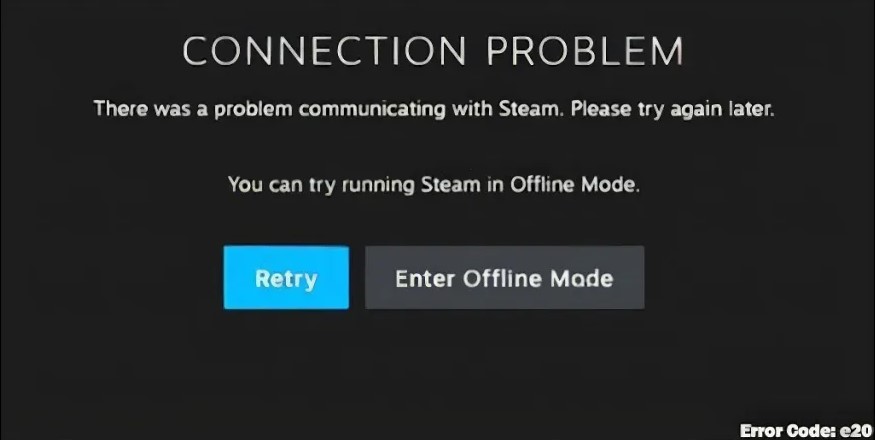
Steam Error Code E20 is a network-related error that appears when the Steam client fails to establish a proper connection with Steam’s authentication servers. When this error occurs, you’ll typically see one of these messages:
- “Something went wrong while attempting to sign you in. Please try again later”
- “CONNECTION PROBLEM – There was a problem communicating with Steam. Please try again later”
- “You can try running Steam in Offline Mode”
This error can manifest in different scenarios – during login attempts, while browsing the Steam store, or even while you’re in the middle of a multiplayer game session. The error essentially prevents Steam from verifying your credentials and connecting to its servers, leaving you locked out of your gaming library.
Common Causes of Steam Error E20
Understanding the root causes of this error helps you apply the right solution faster. Based on extensive user reports and technical analysis, here are the primary culprits behind Steam Error Code E20:
Network Connection Problems
Unstable or slow internet connections are the most frequent cause of Error E20. When your network can’t maintain a stable connection to Steam’s servers, authentication fails and triggers this error. This includes issues with your router, modem, or ISP service interruptions.
Firewall and Antivirus Interference
Windows Defender Firewall or third-party security software can sometimes mistakenly identify Steam as a potential threat. When these programs block Steam’s communication with its servers, Error E20 appears as a result of the blocked connection.
Corrupted Steam Cache Files
Over time, Steam accumulates cache data that helps it run more efficiently. However, when these cache files become corrupted or outdated, they can interfere with login processes and trigger various errors, including E20.
DNS Configuration Issues
Problems with your Domain Name System settings can prevent Steam from resolving server addresses correctly. This DNS inconsistency creates communication barriers between your computer and Steam’s authentication servers.
Steam Server Downtime
Sometimes the issue isn’t on your end at all. Scheduled maintenance, unexpected outages, or high server load can cause connection problems that result in Error E20 for users worldwide.
How to Fix Steam Error Code E20: Proven Solutions
Now let’s dive into the actual solutions. We’ve organized these fixes from the simplest to more advanced, so start from the top and work your way down until the error is resolved.
Solution 1: Check Steam Server Status
Before trying any troubleshooting steps on your computer, verify that Steam’s servers are actually operational. If there’s a widespread outage, no amount of local fixes will resolve the issue.
How to Check Steam Server Status:
- Visit SteamStat.us or DownDetector.com in your web browser
- Look for any reported outages or service disruptions
- Check the Steam Community forums for recent reports from other users
- If servers are down, wait for Valve to resolve the issue (usually takes 30 minutes to a few hours)
If the servers show as operational, proceed to the next solution.
Solution 2: Restart Your Network Router
A simple router reboot can refresh your internet connection and resolve many network-related errors, including Steam Error E20. This clears temporary network conflicts and establishes a fresh connection.
Steps to Properly Restart Your Router:
- Locate your router’s power cable
- Unplug the power cable from the wall outlet or press the power button if available
- Wait for 30-60 seconds to ensure complete power down
- Plug the power cable back in and wait for the router to fully restart (all lights should stabilize)
- Once your connection is restored, launch Steam and attempt to login
This method has proven effective for many users experiencing intermittent connection issues with Steam.
Solution 3: Run Steam as Administrator
Running Steam with elevated privileges can resolve permission-related issues that might be preventing proper server communication.
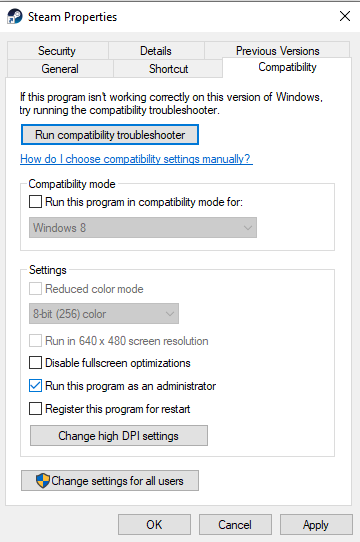
How to Run Steam as Administrator:
- Completely close Steam (right-click the Steam icon in system tray and select Exit)
- Right-click your Steam desktop shortcut
- Select “Run as administrator” from the context menu
- If prompted by User Account Control, click Yes
- Try logging in to your account
Set Steam to Always Run as Administrator:
If this fixes your issue, you can configure Steam to always use administrator privileges:
- Right-click the Steam shortcut and select Properties
- Navigate to the Compatibility tab
- Check the box next to “Run this program as an administrator”
- Click Apply, then OK
Solution 4: Clear Steam Cache
Corrupted cache files are a common source of Steam errors. Clearing the cache forces Steam to create fresh configuration files, which often resolves Error E20.
Method to Clear Steam Download Cache:
- Open Steam (if possible) or use Steam in Offline Mode
- Click “Steam” in the top-left corner
- Select “Settings” from the dropdown menu
- Navigate to the “Downloads” section in the left sidebar
- Click “Clear Download Cache”
- Confirm when prompted
- Steam will close and ask you to login again
Manual Cache Deletion Method:
For a more thorough cleanup, you can manually delete cache folders:
- Press Windows + R to open the Run dialog
- Type the following path and press Enter:
C:\Program Files (x86)\Steam - Locate and delete the following folders (keep backup if needed):
- appcache
- htmlcache
- depotcache
- Restart your computer
- Launch Steam – it will recreate these folders automatically
Important Note: Clearing the cache won’t delete your games or saved data. It only removes temporary files that Steam can regenerate.
Solution 5: Configure Windows Firewall for Steam
Windows Firewall might be blocking Steam’s connection attempts. Adding Steam to the firewall’s allowed list ensures proper communication with Steam servers.
Add Steam to Windows Firewall Exceptions:
- Press the Windows key and type “Windows Defender Firewall”
- Click “Windows Defender Firewall” from the search results
- On the left panel, click “Allow an app or feature through Windows Defender Firewall”
- Click “Change settings” (you may need administrator privileges)
- Click “Allow another app”
- Click “Browse” and navigate to:
C:\Program Files (x86)\Steam\Steam.exe - Select Steam.exe and click “Open”
- Click “Add”
- Make sure both “Private” and “Public” checkboxes are checked for Steam
- Click OK to save changes
Temporarily Disable Firewall for Testing:
If you want to quickly test if the firewall is causing the issue:
- Open Windows Defender Firewall
- Click “Turn Windows Defender Firewall on or off” in the left panel
- Select “Turn off Windows Defender Firewall” for both Private and Public networks
- Click OK
- Try logging into Steam
- Important: Remember to turn the firewall back on after testing
Solution 6: Switch to Google DNS
Changing your DNS settings to Google’s public DNS servers can resolve DNS-related connection issues that cause Error E20. Many users report this as the solution that finally worked for them.
Configure Google DNS on Windows:
- Press Windows + R and type
ncpa.cpl, then press Enter - Right-click your active network connection (Ethernet or Wi-Fi)
- Select “Properties”
- Double-click “Internet Protocol Version 4 (TCP/IPv4)”
- Select “Use the following DNS server addresses”
- Enter the following values:
- Preferred DNS server:
8.8.8.8 - Alternate DNS server:
8.8.4.4
- Preferred DNS server:
- Click OK on both windows
- Restart your computer
- Try connecting to Steam again
Google’s DNS servers are reliable, fast, and often perform better than default ISP DNS servers, especially for gaming services like Steam.
Solution 7: Reset Network Configuration
Resetting your network settings can fix underlying connectivity issues that aren’t resolved by simpler methods.
Reset IP Address and DNS Using Command Prompt:
- Press Windows + X and select “Command Prompt (Admin)” or “Windows PowerShell (Admin)”
- Enter the following commands one by one, pressing Enter after each:
ipconfig /releaseipconfig /renewipconfig /flushdnsnetsh winsock resetnetsh int ip reset
- Restart your computer
- Launch Steam and test the connection
These commands clear DNS cache, reset network adapters, and refresh your IP configuration, which can resolve stubborn connection issues.
Solution 8: Disable Third-Party Antivirus Temporarily
Third-party antivirus software can sometimes interfere with Steam’s connection to its servers. Testing with the antivirus temporarily disabled helps identify if it’s the source of the problem.
Steps to Disable Antivirus:
- Locate your antivirus icon in the system tray (bottom-right of taskbar)
- Right-click the icon
- Look for options like “Disable protection” or “Pause protection”
- Choose to disable for 10-15 minutes
- Try logging into Steam
- If successful, add Steam to your antivirus exceptions list
- Re-enable your antivirus protection
Security Note: Never leave your antivirus disabled permanently. Only disable it for brief testing periods.
Solution 9: Change Steam Download Region
Sometimes switching to a different Steam content server region can bypass congested or problematic servers.
How to Change Download Region:
- Open Steam (use Offline Mode if necessary)
- Click “Steam” in the top-left corner
- Select “Settings”
- Navigate to “Downloads” in the left menu
- Under “Download Region”, click the dropdown menu
- Select a different region (preferably one geographically close to you)
- Click OK
- Restart Steam and try to login
Solution 10: Use VPN or Disable VPN
The relationship between VPNs and Steam Error E20 works both ways – sometimes a VPN causes the issue, other times it solves it.
If You’re Using a VPN:
- Disconnect from your VPN
- Try logging into Steam with your regular connection
- If successful, the VPN was causing the conflict
If You’re Not Using a VPN:
- Install a reputable VPN service (ExpressVPN, NordVPN, or similar)
- Connect to a server in your region or a nearby location
- Launch Steam and attempt to login
- This can bypass ISP-level routing issues or regional restrictions
Solution 11: Check for Packet Loss
Packet loss occurs when data traveling between your computer and Steam’s servers doesn’t arrive at its destination. This can trigger Error E20.
Test for Packet Loss:
- Press Windows + R and type
cmd, then press Enter - In Command Prompt, type:
ping steampowered.com -n 50 - Press Enter and wait for the test to complete
- Look at the results – any “Request timed out” messages or packet loss percentage above 0% indicates a problem
If you detect packet loss, contact your Internet Service Provider or try switching to a wired Ethernet connection instead of Wi-Fi.
Solution 12: Update Steam Client
An outdated Steam client can have bugs or compatibility issues that trigger Error E20.
Update Steam:
- Launch Steam
- Click “Steam” in the top menu
- Select “Check for Steam Client Updates”
- If an update is available, Steam will download and install it automatically
- Restart Steam after the update completes
Solution 13: Verify Game Files Integrity
If Error E20 appears when launching or updating a specific game, corrupted game files might be the cause.
Verify Game Files:
- Open your Steam Library
- Right-click the problematic game
- Select “Properties”
- Go to the “Installed Files” tab
- Click “Verify integrity of game files”
- Wait for Steam to check and repair any corrupted files
Solution 14: Reinstall Steam (Last Resort)
If none of the above solutions work, a clean reinstallation of Steam might be necessary. This should be your last resort as it requires re-downloading the Steam client.
How to Safely Reinstall Steam:
- Backup your game files: Copy the
steamappsfolder fromC:\Program Files (x86)\Steam\to a safe location - Open Control Panel and go to “Programs and Features”
- Find Steam in the list and click “Uninstall”
- Download the latest Steam installer from steampowered.com
- Install Steam to the same location as before
- Move your backed-up
steamappsfolder back to avoid re-downloading games - Launch Steam and login
Advanced Troubleshooting Tips
Check System Date and Time
Incorrect system time can cause authentication failures with Steam servers. Ensure your computer’s date and time are set correctly and synchronized with internet time servers.
Disable IPv6
Some users report success by disabling IPv6 and using only IPv4:
- Open Network Connections (ncpa.cpl)
- Right-click your network adapter and select Properties
- Uncheck “Internet Protocol Version 6 (TCP/IPv6)”
- Click OK and restart your computer
Try Steam Web Browser Login
Sometimes logging in through your web browser at steampowered.com can bypass the client error. After logging in successfully via browser, try the client again.
Preventing Future Steam Error E20 Occurrences
Once you’ve fixed Error E20, follow these preventive measures to avoid encountering it again:
- Keep Steam Updated: Always install Steam client updates when they become available
- Maintain Stable Internet: Use wired Ethernet connections when possible for more reliable connectivity
- Regular Cache Clearing: Clear Steam’s cache every few months to prevent corruption
- Firewall Exceptions: Keep Steam properly configured in your firewall and antivirus software
- DNS Configuration: Stick with reliable DNS servers like Google DNS or Cloudflare DNS
- Monitor Steam Status: Follow @Steam_Support on Twitter for server status updates
When to Contact Steam Support
If you’ve tried all the solutions in this guide and still can’t resolve Error E20, it’s time to contact Steam Support. Before reaching out, prepare the following information:
- Detailed description of when the error occurs
- Which troubleshooting steps you’ve already attempted
- Your operating system and version
- Your internet connection type (WiFi, Ethernet, mobile hotspot)
- Screenshots of the error message
- Any error logs from Steam (found in the Steam installation folder)
Visit help.steampowered.com to submit a support ticket. Response times vary, but Steam Support typically replies within 24-48 hours.
Frequently Asked Questions
What does Steam Error Code E20 mean?
Steam Error Code E20 indicates a connection failure between your computer and Steam’s authentication servers. This network-related error prevents you from logging into your account and can be caused by internet connectivity issues, firewall interference, corrupted cache files, or DNS problems.
Is Steam Error E20 related to my account being banned?
No, Error E20 is not related to account bans or VAC suspensions. It’s purely a technical connection issue. If your account were banned, you would receive a specific message stating the ban reason and duration, not Error E20.
How long does it take to fix Steam Error E20?
Most users can resolve Error E20 within 5-15 minutes using basic troubleshooting like restarting their router, clearing Steam cache, or changing DNS settings. More complex cases involving firewall configuration or network resets might take 30-45 minutes.
Can Steam Error E20 affect only one game?
While Error E20 typically appears during login and affects access to all of Steam, it can occasionally trigger when launching specific games if those games have corrupted files. In such cases, verifying the game’s file integrity through Steam should resolve the issue.
Will clearing Steam cache delete my games?
No, clearing Steam’s cache only removes temporary configuration files and website data. Your installed games, save files, and game progress remain completely intact. The cache helps Steam run more efficiently, but it’s regenerated automatically after deletion.
Should I use a VPN to fix Steam Error E20?
Using a VPN to fix Error E20 works in specific situations where your ISP is blocking or improperly routing Steam traffic. However, try other solutions first, as VPNs can sometimes cause additional latency in games. If you do use a VPN, choose servers close to your actual location for best performance.
Can antivirus software cause Steam Error E20?
Yes, antivirus software and Windows Firewall can definitely cause Error E20 by blocking Steam’s connection to its servers. Many security programs mistakenly identify Steam as suspicious traffic. Adding Steam to your antivirus exceptions list usually resolves this issue.
Does Steam Error E20 happen on Mac and Linux?
While Error E20 is most commonly reported on Windows, it can occur on Mac and Linux systems as well since it’s fundamentally a network connectivity error. The troubleshooting steps are similar across platforms, though the specific settings locations differ.
Conclusion
Steam Error Code E20 is undoubtedly frustrating, but it’s rarely a serious problem that can’t be fixed with proper troubleshooting. In most cases, simple solutions like restarting your router, clearing Steam cache, or adjusting your DNS settings will get you back to gaming within minutes.
The key is to approach the problem methodically – start with the quickest fixes first, check Steam server status before diving into complex solutions, and don’t hesitate to reach out to Steam Support if you’ve exhausted all options. Remember that this error is connection-based, not account-related, so your games and progress are always safe.
By following this comprehensive guide, you now have 14 proven solutions at your disposal to tackle Steam Error E20 whenever it appears. Whether it’s a network issue, firewall conflict, or corrupted cache causing the problem, you’re equipped with the knowledge to diagnose and fix it efficiently.
Have you successfully resolved your Steam Error E20 using one of these methods? Which solution worked for you? Share your experience in the comments below to help other gamers facing the same issue. Happy gaming, and may your Steam connection stay stable!