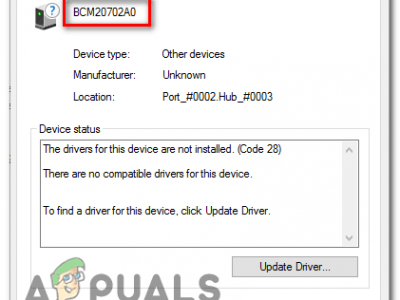
If Device Manager is showing a yellow exclamation mark next to “USB Composite Device,” you’re dealing with a USB Composite Device Driver Error. This shows up when Windows can’t properly load the driver that lets a multi-function USB device — think a printer that also scans, a webcam with a built-in microphone, or certain keyboards with extra ports — talk to your PC. The device usually stops working entirely until the driver issue is sorted out, but the fix rarely requires anything more than Device Manager and a few minutes.
What Causes the USB Composite Device Driver Error?
A “composite device” is simply a single USB connection handling more than one function at once, which means Windows has to load several drivers correctly at the same time. When one of them fails, you get this error. The most common causes are:
- Outdated or corrupted USB drivers, especially after a Windows update
- Plugging an older device into a USB 3.0 port that isn’t fully backward-compatible with it
- Power management settings that let Windows shut off the USB controller to save power
- A pending or incomplete Windows update
- A faulty USB hub or port, particularly front-panel hubs on desktop cases
- Driver conflicts left behind by a previous device or software installation
How to Fix This USB Driver Error
1. Run the Hardware and Devices Troubleshooter
This is the fastest thing to try first. Press Windows + R, type msdt.exe -id DeviceDiagnostic, and press Enter. Windows will scan for hardware conflicts and can often fix common USB driver issues automatically.
2. Update the USB Composite Device Driver
Open Device Manager (right-click the Start button and select it), expand Universal Serial Bus controllers, right-click USB Composite Device, and choose Update driver. Let Windows search automatically first; if that doesn’t find anything newer, check your device manufacturer’s website for a dedicated driver.
3. Uninstall and Reinstall the Driver
If updating doesn’t help, the existing driver may be corrupted rather than outdated. In Device Manager, right-click USB Composite Device and select Uninstall device. Disconnect the physical device, restart your PC, then reconnect it — Windows will automatically reinstall a fresh copy of the driver.
4. Turn Off USB Selective Suspend / Power Management
Windows sometimes powers down USB ports to save battery, which can interrupt composite devices mid-task. In Device Manager, expand Universal Serial Bus controllers, right-click each USB Root Hub, open Properties > Power Management, and uncheck “Allow the computer to turn off this device to save power.”
5. Try a Different USB Port
Older peripherals don’t always play nicely with USB 3.0 ports. If your device is a few years old, try a USB 2.0 port instead, or a different port on your motherboard rather than a front-panel or hub connection. This alone resolves the error for a lot of printers and webcams.
6. Check for Windows Updates
Microsoft regularly ships driver fixes through Windows Update. Go to Settings > Windows Update > Check for updates, install anything pending, and restart your PC before testing the device again.
7. Uninstall All USB Controllers and Restart
If the error is affecting multiple devices, a broader reset can help. In Device Manager, expand Universal Serial Bus controllers, right-click every entry — USB Composite Device, Generic USB Hub, and USB Root Hub — and select Uninstall device for each. Restart your PC afterward; Windows rebuilds all of them automatically on boot.
8. Power-Cycle Your PC
Shut your computer down completely (not just restart), unplug all USB peripherals, and disconnect the power cable for about 30 seconds to let any residual charge drain from the motherboard. Reconnect everything and boot back into Windows — this clears out USB controller states that a normal restart sometimes leaves behind.
Still Seeing the Error?
If none of the above clears the yellow warning, the problem may not be limited to this one device. It’s worth checking whether your USB port isn’t working at all, since a dead port will produce the same symptoms as a driver error. And if Windows Update is stuck or failing in the background, that can also prevent the correct USB drivers from installing — worth ruling out before you spend more time in Device Manager.
Frequently Asked Questions
What is a USB Composite Device?
It’s a single USB connection that handles more than one function at the same time — for example, a printer that also scans and faxes, or a webcam with a built-in microphone. Windows loads a separate driver for each function under one connection.
Is this driver error dangerous to my PC?
No. It only affects the specific USB device showing the error and doesn’t put your system at risk. The main downside is that the affected device won’t work correctly until the driver issue is resolved.
Why does this error only happen with older devices?
Older peripherals are often built around USB 2.0 standards and can behave unpredictably when plugged into a modern USB 3.0 port. Switching to a USB 2.0 port or hub frequently resolves the conflict.
Will reinstalling the driver delete any of my files?
No. Uninstalling and reinstalling a device driver only affects how Windows communicates with that hardware — it has no effect on your personal files or software.